Requests are at the core of Gatheroo. A request is a structured, secure portal you build and send to a client to collect exactly the documents, information, and signatures you need.
This guide covers everything: building requests, field types, settings, sending, tracking and managing responses.
What is a Gatheroo request?
- A Gatheroo request is made up of pages.
- Each page can contain one or more sections.
- Each section contains fields.
- Fields are the individual questions, upload prompts or signature blocks your client will see and complete.
Pages can be visible to your client, or set to internal-only so they stay with your team. Internal-only pages hold the work your practice does on the request itself: verification checks, file notes, handover steps. See Using internal-only pages in Gatheroo.
You control everything: which fields appear, which are mandatory, whether responses are encrypted, and how the request is presented.
Clients receive a unique link and complete the request without needing a Gatheroo account.
Building a request
Every request is built across four steps.
Setup. Name the request, assign a contact, set a due date, choose where submitted files are saved, configure reminders and set your email branding.
Request Builder. Build the content: add pages, sections and fields, and set each page to visible or internal-only.
Request Preview. See the request exactly as your client will see it, before anyone receives it.
Share & Track. Create the secure links, send them, and follow progress as answers come in.
You can start from scratch or use a saved template to pre-fill the structure.
Field types available
Gatheroo supports a wide range of field types to collect different kinds of information. These include file uploads, text (single line and multi-line), signatures, dates, phone numbers, addresses, email addresses, single select, multi-choice, numbers, groups and more.
Each field has its own settings for making it mandatory, adding instructions, enabling encryption, etc…
Request settings
Access: You can add a passcode to restrict who can open a request, useful when sending to multiple recipients or for sensitive matters.
File saving: Connect OneDrive or Google Drive to automatically save submitted files to a specific folder. Files are saved periodically as a client submits their response.
Reminders: Set automated email and SMS reminders for due date changes, upcoming due dates and overdue items. Reminders run without any manual follow-up required.
Notifications: Turn on or off the notifications you would like to receive: daily summaries, response submitted, request completed and first views.
Email branding: Customise the email your client receives with your logo and a personal message.
Sending requests
Once your request is ready, you add one or more contacts as recipients. Each recipient gets their own unique link.
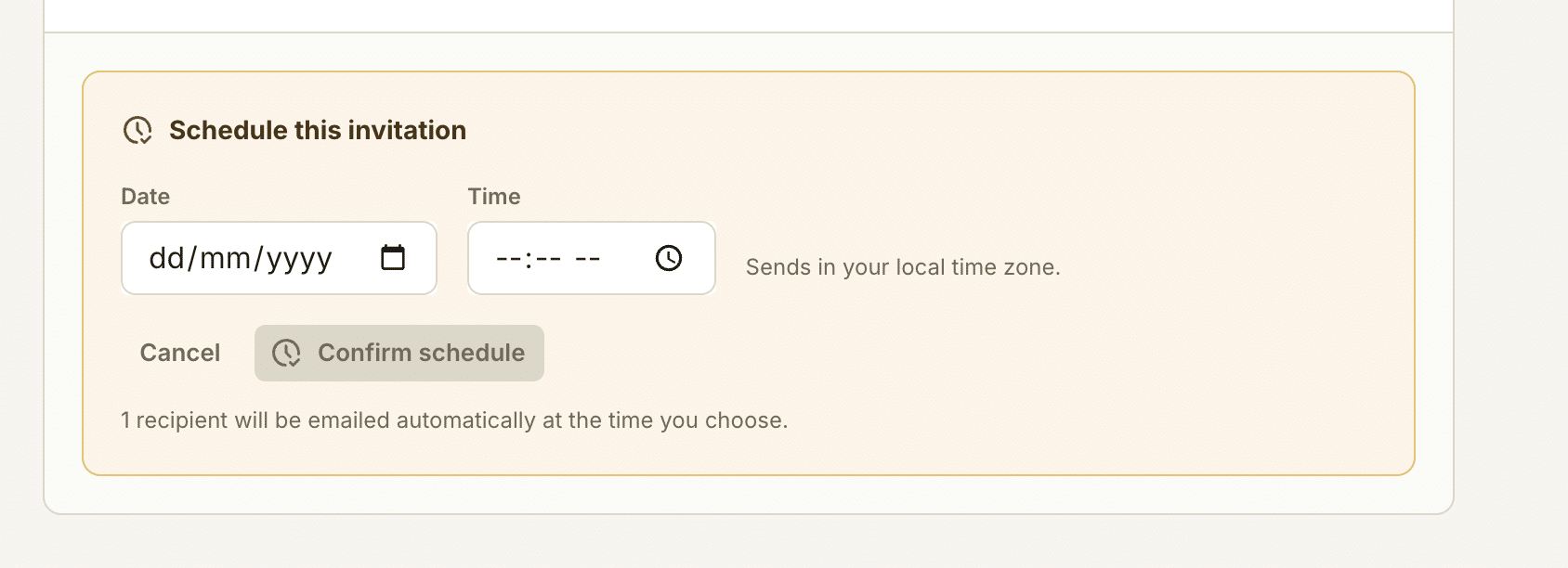
You can send immediately or schedule a send date.
Managing requests and tracking progress
The Requests dashboard shows all your active, draft, sent, opened, scheduled, and completed requests.
You can see at a glance how many fields each recipient has completed, when the request is due and what their current status is.
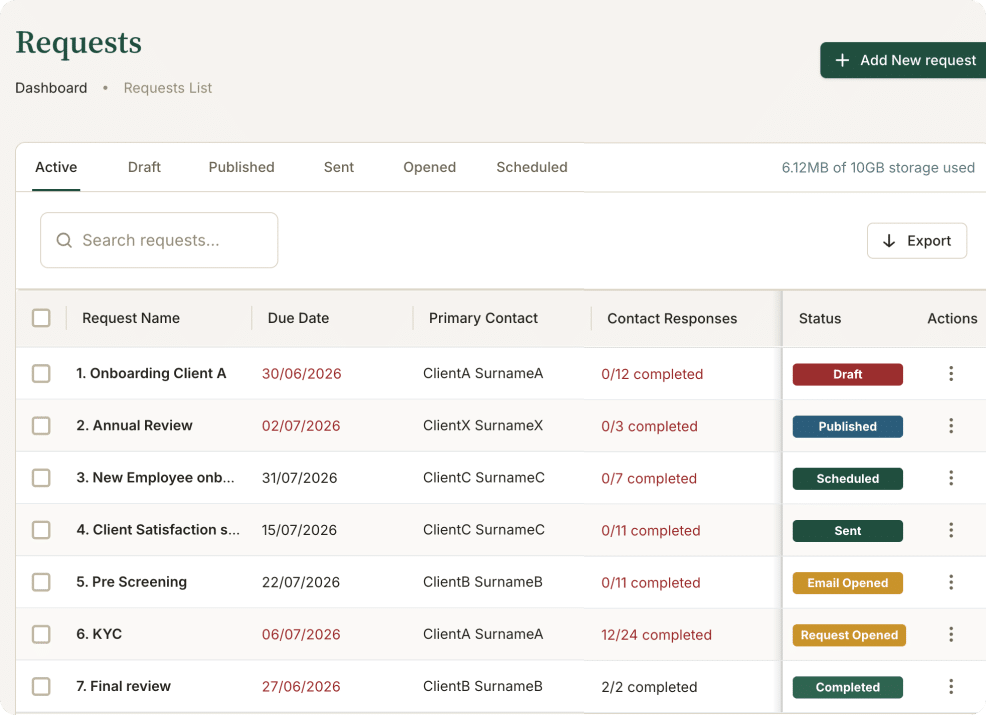
Bulk actions let you archive, delete, or restore multiple requests at once. You can also amend request settings after sending if something needs to change.
More detail on specific steps
Building your request: Create a new request · Rearranging fields, sections and pages · Setting up conditional logic
Field and request settings: Field Settings overview · Request Settings overview · Mandatory fields · Repeater fields · Field encryption · Horizontal and vertical display · Controlling who sees your clients’ information
Sending and scheduling: Send a request · Schedule Send
Managing and tracking: Navigating the Requests dashboard · Bulk actions: archive, delete, restore · Xero, MYOB & QuickBooks CSV import
What clients experience
Your client receives an email with a link to their request. They open it in any browser, no account required. They work through each page and field at their own pace, save their progress, and submit when complete. They receive a confirmation when everything is received.