What this covers: The Requests dashboard is where you manage all your requests – draft, active, completed, and archived. This guide explains how to navigate the dashboard, customise your view, and use the action menu.
The Requests dashboard
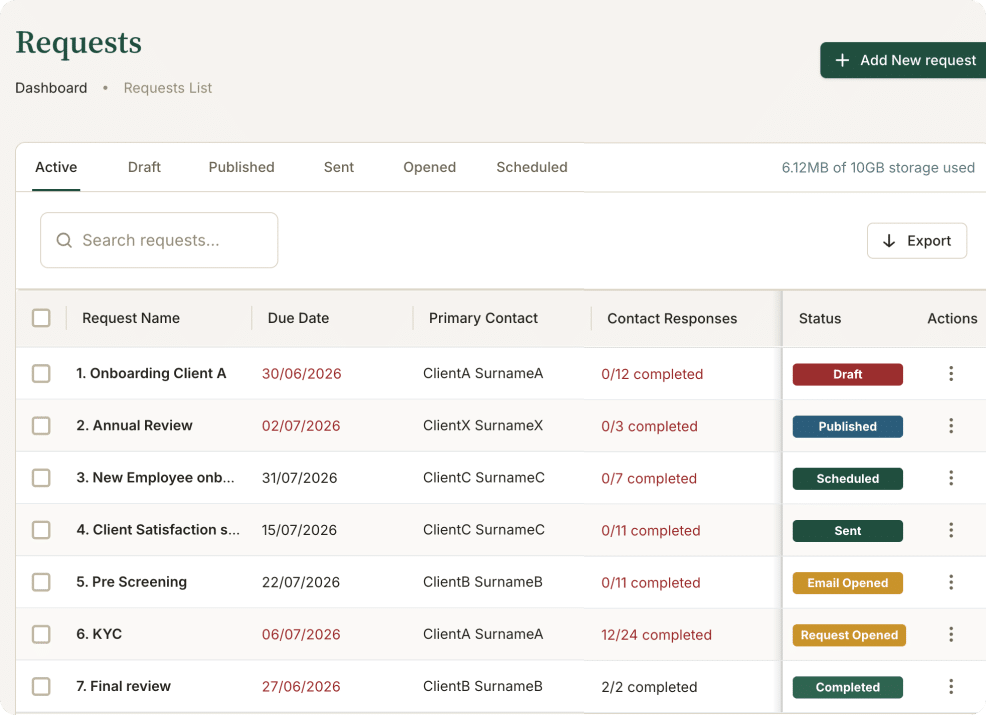
Request statuses
- Draft: the request has been created but not yet published or sent.
- Published: the request is ready but has not been sent to a client yet.
- Sent: the request has been sent to at least one client.
- Email Opened: one of the recipients has opened the email containing the invitation to the request.
- Request Opened: one of the recipients has clicked on the link to open the request from their invitation email.
- Completed: the client has submitted all required fields.
- Archived: the request has been removed from the active view but is not deleted.
Filtering by status
Use the tabs at the top of the dashboard to filter by status: All, Draft, Active, Completed, or Archived. This keeps your view uncluttered as your request list grows.
Customising columns
You can adjust which columns are shown and their width:
- Click the column header menu (three dots) to show or hide that column.
- Drag the edge of a column header to resize it.
- Click any column header to sort by that column.
The action menu (three dots)
Each row in the dashboard has a three-dot menu on the right. Click it to:
- Edit: open the request builder
- Duplicate: create a copy of the request
- Archive: move the request to the Archived view
- Delete: permanently delete the request
Bulk actions
Select multiple requests using the checkboxes on the left, then use the Bulk Actions menu that appears to archive, delete, or restore them in one go. See Bulk Actions for full details.
Request limit warning
If your plan has a request limit and you’re approaching it, a warning banner will appear at the top of the Requests dashboard. Archiving completed requests frees up capacity, or you can upgrade your plan from Global Settings → Billing Details.