What this does
An internal-only page is a page inside a request that your team can see and your client cannot. Use it for the work your practice does on a file: verification checks, file notes, handover steps, anything that belongs with the request but is not a question for the client.
Internal-only pages are available on all plans. Every page is visible to all by default, and you turn internal-only on per page – when you need it.
Before you start
Internal-only pages follow the same access rules as the rest of the request, so any team member who can see the request can see the internal-only page, and anyone who cannot see the request, cannot see the internal pages.
Add an internal-only page
- Open the request and go to Request Builder.
- Click on Add a page on the main canvas.
- Give the page a name. This name is only ever seen by your team, so name it for what it is: Checklist, File notes, Handover.
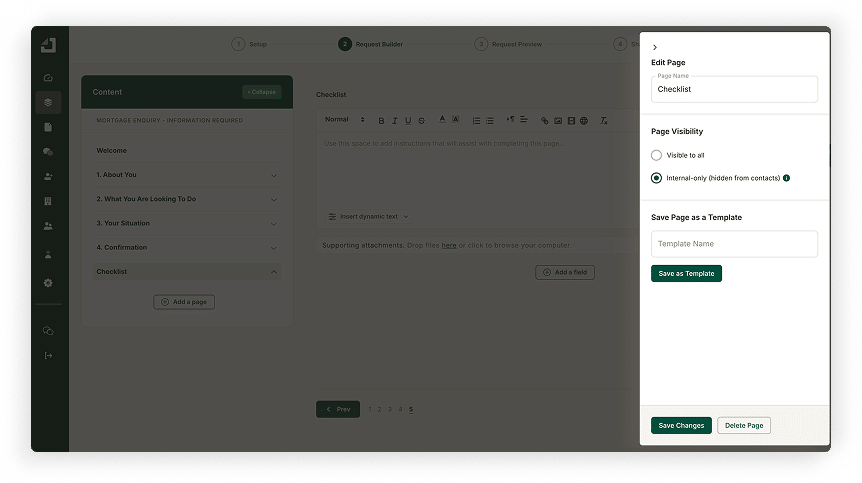
- Click the Settings cog next to the page name to open Edit Page.
- Under Page Visibility, select Internal-only (hidden from contacts).
- Click Save Changes.
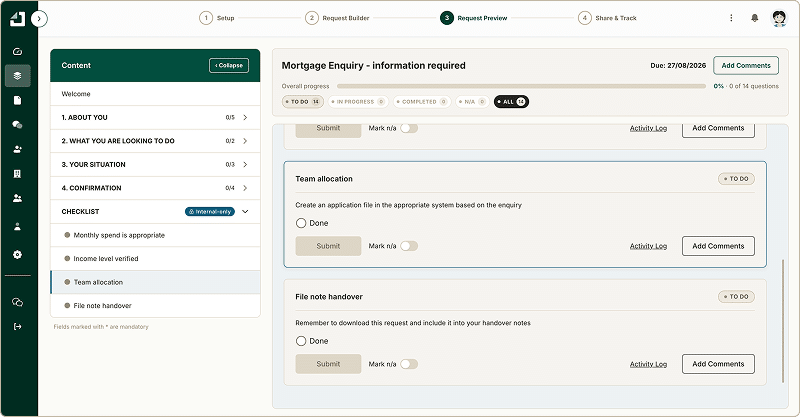
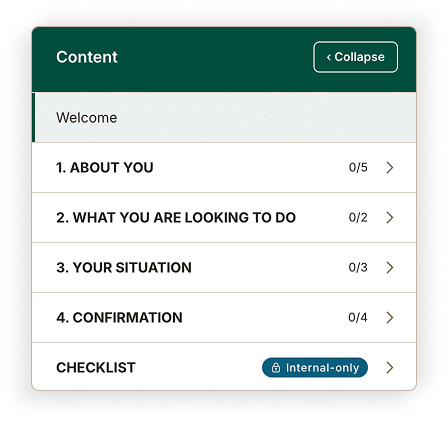
The page now carries an Internal-only label wherever it appears, in the Content panel, in Request Preview and in Share & Track.
Add fields to the page
An internal-only page works exactly like any other page.
Click Add a field and build it the way you would build a client-facing page.
Typical uses of internal pages
A checklist
Add one field per step, each with a single option such as Done, and put the instruction in the field description. Your team works down the list and each item is marked off individually.
Because every team member sees the same list, every file gets handled the same way and recorded the same way.
A decision record
Use a single-select field where the options capture the judgement made, for example Aligned or Queried and response makes sense. That records not just that a check happened but what the answer was.
A notes requirement
Use a text area field set to mandatory, and add the requirements for the note in the description. For example, you might ask for the team member to describe one option that was considered and rejected, with a clear list of the reasons why it was rejected.
Pre & post client interaction tasks
Use two internal pages to guide your team on actions required before the request goes to the client, and after the request is back with all their answers.
You can also add instructions and supporting attachments to the page itself, the same as any other page.
Working through the page
Internal-only pages appear in Share & Track alongside the client-facing pages, with their own completion count.
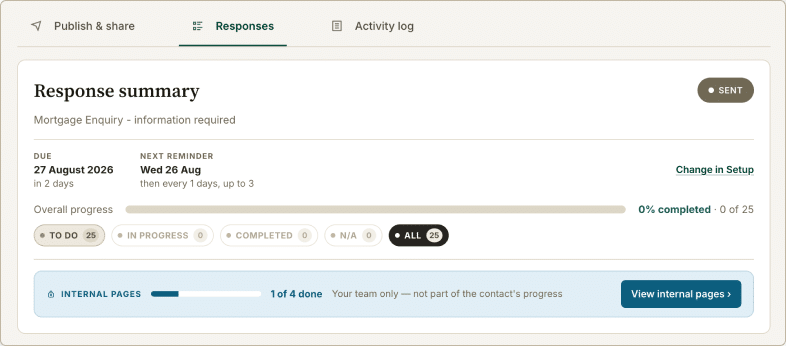
Your team submits answers on an internal page in the same way a client submits answers on a client-facing page: choose the option, then Submit. Items can be marked n/a where they do not apply. Once an item is submitted you can still Make a change if something needs correcting.
Notes
- Nothing on an internal-only page is shown to the client at any point. It does not appear in the client’s view of the request, in reminder emails, or in anything the client can open.
- Every answer, change and comment on an internal-only page is captured in the activity log in the same way as the rest of the request. The record of who did what, and when, builds itself.
- Visibility is set per page, not per field. If you need some information hidden and some visible, use two pages.
- You can save an internal-only page as a template from the Edit Page panel, which is worth doing once your checklist settles. Reuse it rather than rebuilding it.
- Switching a page from internal-only to visible to all makes its content visible to the client. Check what is on the page before you change it.
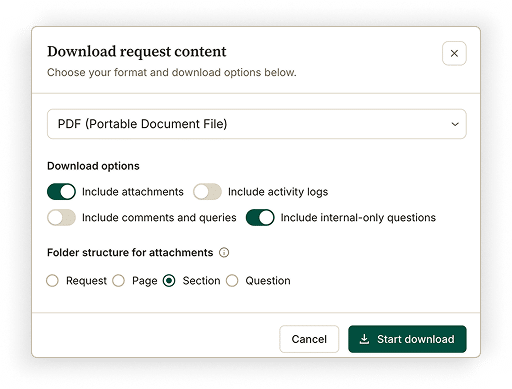
- Download the internal-only page questions and answers by selecting the toggle on the download screen.