What this covers: SMS reminders are an additional way to nudge clients to complete their requests. Instead of (or alongside) email reminders, Gatheroo can send a text message to your client’s mobile number. SMS reminders are available on all plans and use credits that you purchase separately.
This guide covers purchasing SMS credits, setting up SMS reminders on a request and managing your credit balance.
Purchasing SMS credits
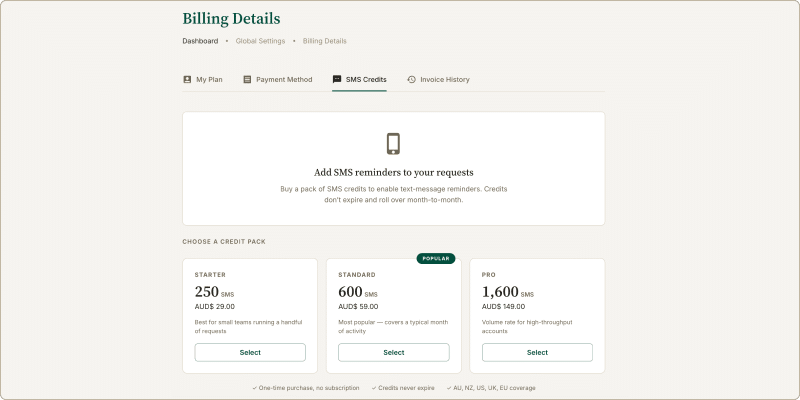
- Go to Global Settings → Billing Details.
- Click the SMS Credits tab.
- Your current credit balance is shown at the top of the screen.
- Scroll down to see available top-up packs and select the one you’d like to purchase.
- Confirm the purchase. Credits are added to your account immediately.
- Automatic top up can be set up to ensure you have sufficient credit for your SMS reminders, or you can manage this manually if you prefer.
Setting up SMS reminders on a request
- Open or create a request.
- Go to Request Settings → Notifications & Reminders.
- Enable SMS reminders.
- Set when reminders should be sent as normal.
- Save the request settings.
Note that for SMS reminders to be sent to your clients, they must have a mobile phone number attached in the Contact screen. If an SMS reminder fails for any reason (no credit, no mobile number, etc…) an email reminder will be sent instead.
Credit usage
SMS credits are used each time a reminder is sent to a client. The exact number of credit per message depends on the size of the message.
Credits are deducted from your balance automatically when a message is sent. You can monitor your balance at any time from the Billing Details → SMS Credits tab.
Note: If your SMS credit balance reaches zero, SMS reminders will stop sending. Email reminders will continue unaffected. Top up your credits to resume SMS reminders.