Conditional logic transforms your Gatheroo requests into intelligent, personalised experiences.

Instead of showing every question to every respondent, you can display only the fields that are relevant based on their previous answers, streamlining the process and improving completion rates.

What is Conditional Logic in Gatheroo?

Conditional logic allows you to dynamically show or hide questions based on how someone answers a preceding question.

This creates a tailored experience where respondents only see fields that apply to their specific situation.

Example Use Case:

If you ask “What is the business structure?” with options like Sole Trader, Partnership, Trust, or Private Company, you can then show different follow-up questions depending on which structure they select.

Gatheroo Single Select field set up ready for conditional logic to display following questions based on client answers

A sole trader might need to provide their “Tax File Number,”

Sole trader is selected, and the following question displayed is the relevant question for this answer

… while a private company will need to provide their “Company Number.”

A different answer selected on that question displays a different follow up question.

Requirements for Conditional Logic in Gatheroo

Before you can use conditional logic in Gatheroo, you need:

  • A Single Select question: This is your “trigger” question that determines what appears next
  • Follow-up fields: These are the questions you want to show or hide based on the answer

Important: Conditional logic only works with Single Select field types as the trigger question.

Step-by-Step: How to Set Up Conditional Logic in Gatheroo

Step 1: Create Your Single Select Question

  • In the Request Builder (step 2 of your workflow), add a new field
  • Select Single Select as the field type
  • Enter your question (e.g., “What is the business structure?”)
  • Add all possible answer options:
    • Sole trader
    • Joint Venture
    • Partnership
    • Trust
    • Private Company
    • Public Company

Step 2: Add Your Follow-Up Fields

Create the fields you want to show conditionally. For example:

  • “Tax File Number” (for sole traders)
  • “Company Number” (for private/public companies)
  • “Trust Deed Date” (for trusts)
  • “Partnership Agreement Date” (for partnerships)
  • Don’t worry about the order, you can re-arrange them later.

Step 3: Enable Conditional Logic on a Field

  • Navigate to the field you want to make conditional (e.g., “Company Number”)
  • Click the gear icon or Edit Field to open field settings
  • Scroll down to the Conditional Logic section
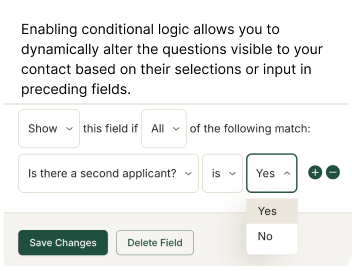
  • Configure the logic rules:
    • Show or Hide this field if…
    • Any or All of the following match
    • Select the trigger question: “What is the business structure?”
    • Choose the operator: is, is not, etc.
    • Select the answer that triggers this field: “Private Company”

Step 4: Add Multiple Conditions (Optional)

  • You can add multiple conditions by clicking the “+” button:
  • Show “Company Number” if business structure is “Private Company” OR “Public Company”
  • Use the “–” button to remove conditions

Step 5: Preview and Test

Go to Request Preview (step 3)

Test different answer combinations

Verify that fields appear and disappear correctly based on your selections

Check the Contents panel to see conditional fields marked with an icon

Understanding Conditional Logic Settings

Show vs. Hide

  • Show this field if… Field remains hidden unless conditions are met
  • Hide this field if… Field is visible unless conditions are met

Any vs. All

  • Any: Field displays if at least one condition is true (OR logic)
  • All: Field displays only if every condition is true (AND logic)

Multiple answers can be selected to display or hide a particular follow up question

You can include conditions from more than one “Single Select” question for a field.

Operators

  • is: Exact match
  • is not: Does not match

Know When a Follow-up Question is Set-up to be Conditionally Displayed

In your Request Builder – each field will display whether Conditional Logic in Enabled (Blue) or not (grey)

See if the field is set up with a conditional display setting on the field itself in your builder

Additionally, you will be able to see this icon in blue next to the field on the left hand menu in you Request Builder step.

See Conditional Fields in the menu on the Builder step

Best Practices for Conditional Logic

1. Keep it simple

  • Start with basic show/hide rules before building complex nested conditions.

2. Test thoroughly

  • Preview your request and go through every possible answer path to ensure logic works correctly.

3. Provide context

  • Even with conditional logic, include brief instructions so respondents understand why they’re seeing certain questions.

4. Use meaningful trigger questions

  • Single select questions like business type, location, or status work well as triggers.

5. Consider the respondent experience

  • Fields should appear smoothly and logically—avoid jarring jumps or confusing sequences.

6. Check your Contents panel

  • Conditional fields are marked with a special icon, making it easy to identify which fields have logic applied.

Troubleshooting Conditional Logic in Gatheroo

Q: My conditional field isn’t showing up

  • Verify the trigger question is a Single Select field
  • Check that your logic conditions exactly match the answer options
  • Ensure you’ve selected “Show” (not “Hide”)

Q: Can I use conditional logic with other field types?

  • Currently, only Single Select questions can serve as the trigger for conditional logic.
  • Any Field can be selected to be displayed conditionally.
  • Q: Can I create multi-level conditional logic?
    Yes! A conditionally displayed field can itself be a Single Select question that triggers additional fields.

Next Steps

Once you’ve set up conditional logic:

  • Publish your request to make it live
  • Monitor responses to see how respondents interact with conditional fields
  • Review Activity Logs to track field interactions
  • Refine your logic based on feedback and completion rates

Conditional logic in Gatheroo helps you create professional, personalised forms that respect your respondents’ time while gathering exactly the information you need.

Frequently Asked Questions Users Ask About Conditional Logic in Gatheroo

What is conditional logic in Gatheroo?

Conditional logic in Gatheroo is a feature that allows you to show or hide specific questions based on how respondents answer previous questions.

It creates dynamic, personalised forms where only relevant fields appear, improving the user experience and completion rates.

You can set up conditional logic in the Field Settings of any question to display it only when certain conditions from a Single Select question are met.

How do I set up conditional logic in Gatheroo?

To set up conditional logic in Gatheroo, first create a Single Select question as your trigger.

Then, add the fields you want to show conditionally. Click the gear icon on any field to open Field Settings, scroll to the Conditional Logic section, and configure your rules by selecting the trigger question, choosing an operator (like “is” or “is not”), and selecting which answer should display this field.

Click save and preview your request to test the logic.

Can I use conditional logic with any field type in Gatheroo?

Conditional logic in Gatheroo currently requires a Single Select question as the trigger field.

However, any field type can be conditionally shown or hidden based on the Single Select answer. This means you can display text fields, file uploads, multi-choice questions, or any other Gatheroo field type conditionally, but the question that determines what shows must be a Single Select field.

How do I show different questions based on form answers?

Use conditional logic in Gatheroo to show different questions based on form answers.

Create a Single Select question with all possible options, then add the follow-up questions you want to display conditionally. In each follow-up question’s Field Settings, enable Conditional Logic and specify which answer from the Single Select question should trigger that field to appear.

You can set multiple conditions using “Any” or “All” logic to create complex branching forms.

Can I create branching forms in Gatheroo?

Yes, you can create branching forms in Gatheroo using conditional logic.

Set up Single Select questions as decision points, then configure subsequent fields to appear only when specific answers are selected. You can create multi-level branching by making conditionally displayed fields themselves Single Select questions that trigger additional fields.

This allows you to build sophisticated, adaptive forms that guide respondents through different paths based on their answers.

How do I hide form fields based on previous answers?

To hide form fields based on previous answers in Gatheroo, use conditional logic in the Field Settings.

Create a Single Select question, then open the Field Settings for any field you want to hide conditionally. In the Conditional Logic section, select “Hide this field if” instead of “Show this field if,” then set up your conditions.

The field will be visible by default but will hide when the specified conditions are met.

What are dynamic form questions?

Dynamic form questions are questions that appear or disappear automatically based on how someone fills out earlier parts of a form. In Gatheroo, you create dynamic form questions using conditional logic, which shows relevant fields based on Single Select question answers.

This creates a personalised experience where respondents only see questions applicable to their situation, making forms shorter, more relevant, and easier to complete.

How can I personalise forms based on user responses?

Personalise forms based on user responses in Gatheroo by setting up conditional logic.

Start with key Single Select questions that identify different user segments or scenarios (like business type, location, or service needed).

Then configure follow-up fields to display only when relevant answers are selected.

This ensures each respondent sees a customised set of questions tailored to their specific situation, improving engagement and data quality.