Add team members to your Gatheroo account, assign the right roles, and control who can see and manage what.
This guide covers everything an Account Owner needs to manage their team effectively.
Gatheroo user roles explained
Gatheroo has three user roles:

Account Owner: The person who created and owns the Gatheroo account. They have full access to everything: requests, contacts, templates, team management, global settings, and billing. There is one Account Owner per account.
Member: Team members with standard access. Members can work on requests assigned to them. They cannot see requests owned by other team members unless specifically shared with them in the request Setup. Their access can be tightly controlled through request-level ownership settings.
Admin: Team members with wider operational access. Admins can generally access Global Settings.

Member and Admin User role access can be amended through the “Manage User Role” settings in the Account Owner’s Global Settings.
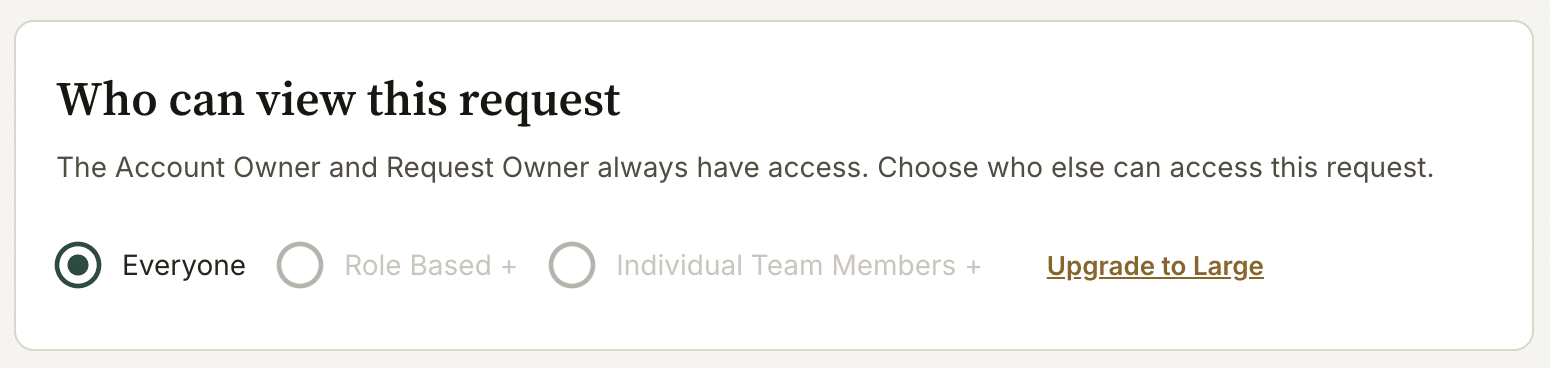
These User Roles can be used to set access on a request level on a Large Plan or above.
Inviting team members
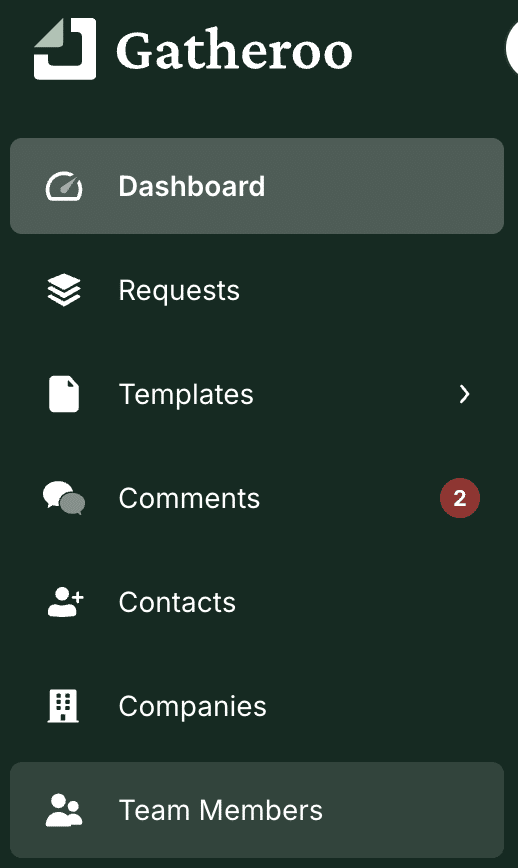
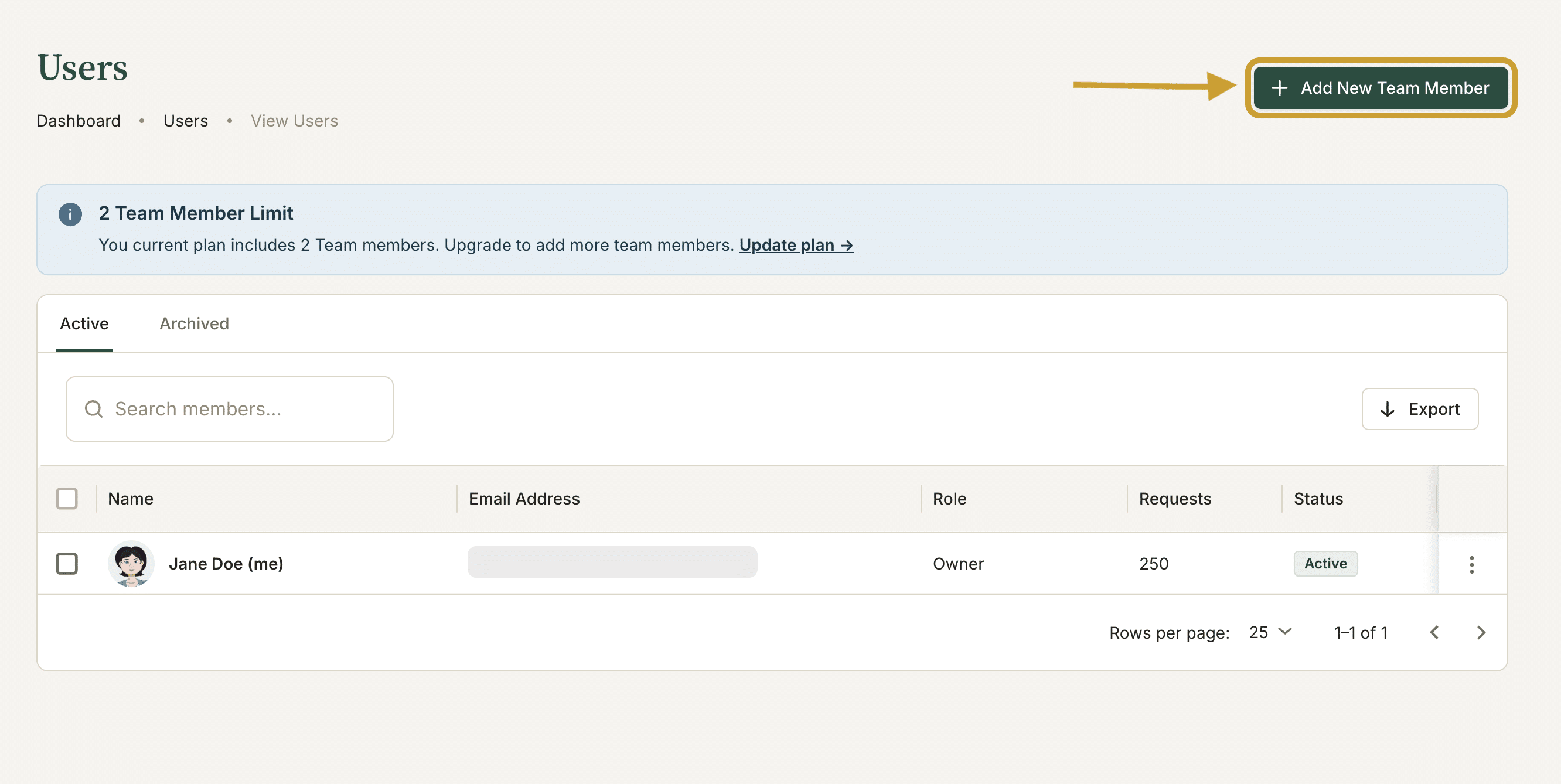
To add a team member, go to Team Members and click Add New Team Member.
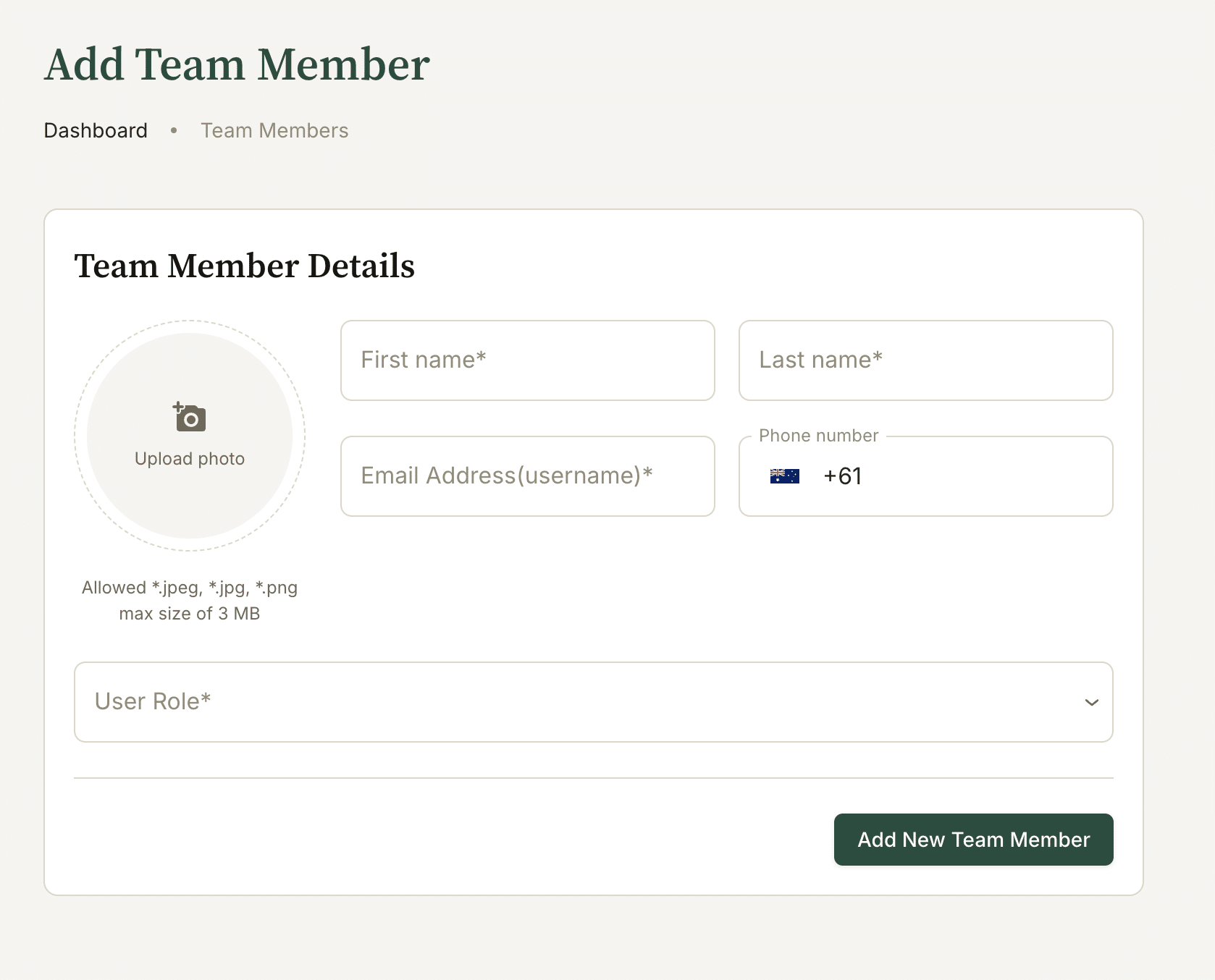
Enter their name and email address, choose their role (Admin or Member) and select “Add New Team Member“. They will receive an invitation with instructions to follow to create their logins within your account.
Full detail, including what the invited person receives and how to remove someone: Add a Team Member
Restricting access to specific requests Beyond account-wide roles, you can also limit a specific request to only certain team members – useful for particularly sensitive client matters. This is set per request, not account-wide, and the Account Owner can always see everything regardless. See Control Who Sees Your Clients’ Information for how to set it up.
Managing and archiving team members
You can update a team member’s role at any time. If a team member leaves the business, you can archive them rather than deleting them.
Archiving removes their access while keeping their request history intact. Any requests assigned to an archived user can be reassigned to another team member.
Just been added to a team yourself? See Gatheroo for Team Members for what you can do and how to get set up.
Team member limits by plan
The number of team members you can have depends on your Gatheroo plan.
Check your current plan details to see your team member limit. You can upgrade at any time to add more seats.