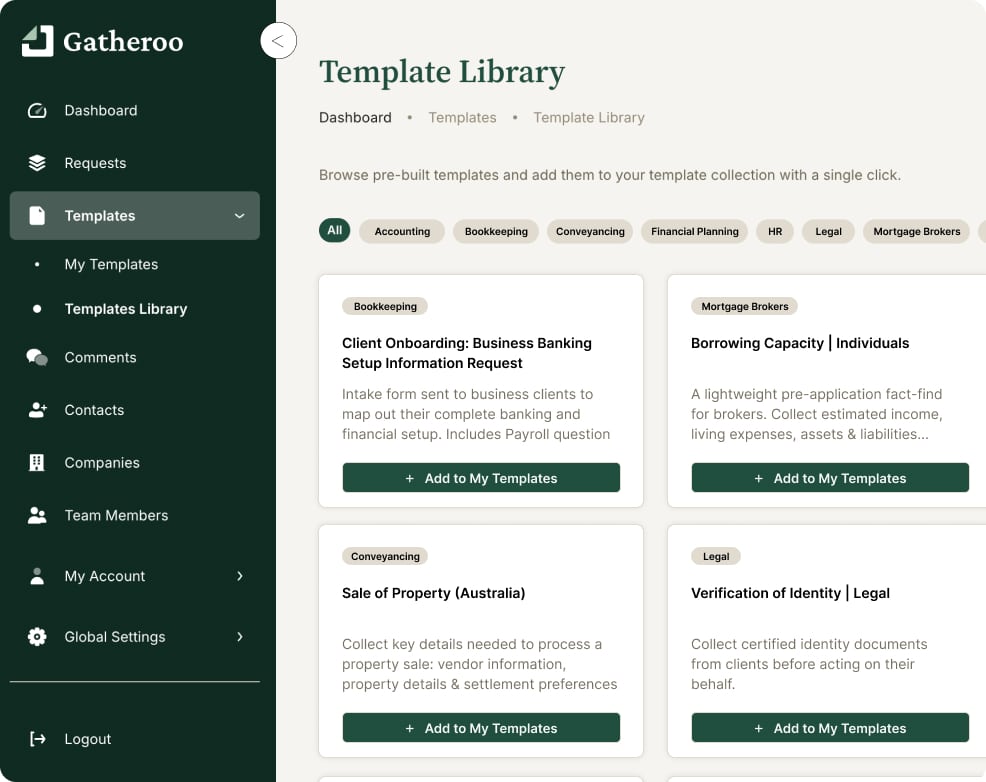
The Template Library gives you a collection of pre-built requests for professional services businesses, ready to add to your account and use straight away, or customise to suit your process.
Finding the Template Library
In the left-hand navigation, click Templates to expand the menu, then select Templates Library.

Browsing and filtering templates
The library is organised by industry category.
Use the filter tabs across the top to narrow the list.
Current categories include Accounting, Bookkeeping, Client Onboarding, Conveyancing, Financial Planning, Legal, Mortgage Brokers and Real Estate.
Select All to see the full library.
You can also search by keyword using the search bar on the right.
Each template card shows the category, the template name, and a short description of what it collects. Read the description before adding – it will tell you whether the template covers what your process needs.
Adding a template to your account
When you find a template you want to use, click “+ Add to My Templates”.
A confirmation will appear at the bottom of the screen once it has been added.

The template will now appear in My Templates, where you can open it, review the fields, and customise it to suit your business before using it in a request.
Adding a template from the library gives you your own independent copy. You can make changes to this copy and re-download the original template if you want a fresh copy.

Adding a template more than once
If you have already added a template, the card will show Previously added and an Add again button.
Clicking ” + Add again” creates a second independent copy in your My Templates list.
This is useful if you want to build two versions of the same template for different purposes, for example, a KYC template customised for individual clients and a separate version for company clients.

After adding – what to do next
Once a template is in My Templates:
- Go to Templates > My Templates
- Find the template you just added
- Open it and review the fields, instructions and structure
- Edit it to match your business name, branding, instructions and any fields specific to your process
- When you’re ready, use it to build a request as you normally would
Can’t find what you need?
The library is updated regularly with new templates across all categories.
If there’s a template type that would be useful for your business and it’s not currently available, get in touch at help@gatheroo.io and let us know, we use this feedback to prioritise what we create next.
Tips
- Filter by your industry category first to see the most relevant templates quickly.
- Read the card description before adding. It tells you what the template collects so you can decide if it’s the right starting point.
- If you want two variations of the same template, use “+ Add again” to get a second copy and customise each one independently.
- Customise the template before sending – the library version is a starting point, not a finished product.
Questions we frequently get:
Is the Template Library available on all Gatheroo plans?
Yes. The Template Library is available to all Gatheroo subscribers regardless of their plan.
Can I edit a template after adding it to my account?
Yes. When you add a template from the library you get your own independent copy. You can edit it however you like: changing fields, instructions or structure, without affecting the original library version.
What happens if I add the same template more than once?
Each time you click Add again you get a new independent copy in My Templates. This is useful if you want two variations of the same template. For example, one version for individual clients and another for company clients.
What if the template I need isn’t in the library?
The library is updated regularly. If you can’t find what you need, email help@gatheroo.io and let us know. Template requests are used directly to prioritise what we build next.