When you’re dealing with sensitive client information, it’s not enough to collect it efficiently; you also need to control exactly who can see each request and its responses.
Gatheroo lets you do this in two layers:
- User Roles and Permissions: define what each role (Owner, Admin, Member) can see and do across your account.
- Request‑level access: choose who can access a specific request once it’s published.
In this article, we’ll focus on request‑level access -> how to make a request visible to the whole team, a user role or specific members.
If you’d like a deeper dive into setting up roles, head over to Understanding User Roles and Permissions in Gatheroo
How Request‑Level Access Works
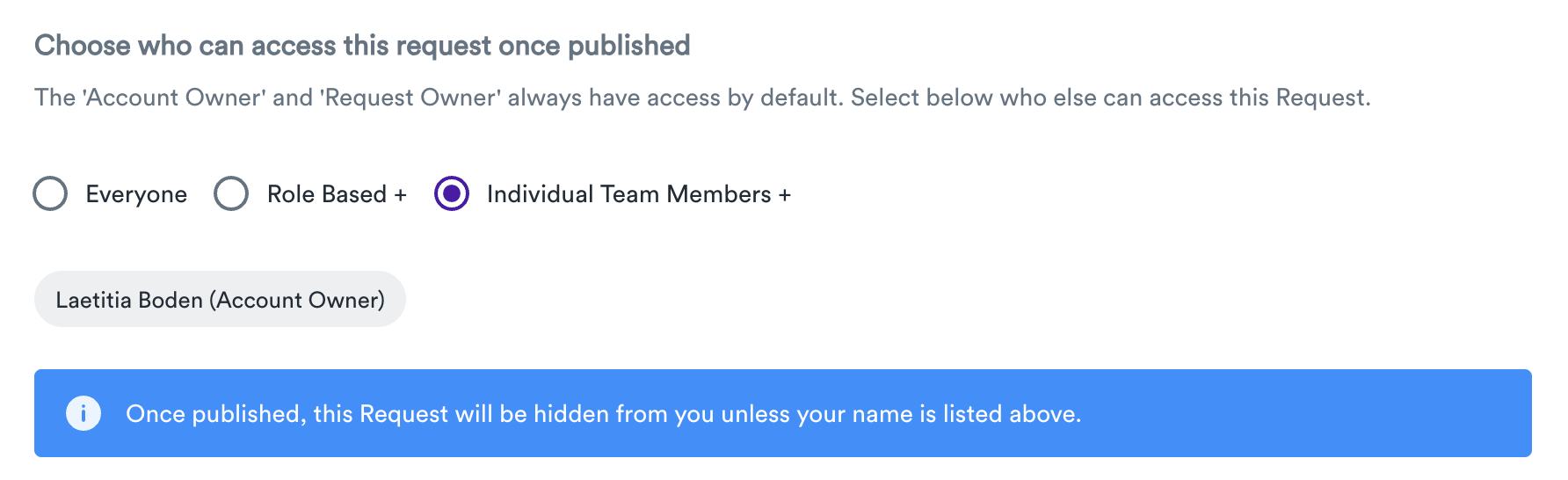
By default, the Account Owner has access to everything, and Request Owners always have access to the individual request.
On top of that, you can decide whether:
- Everyone in your team can see it.
- Access is role-based (e.g. Owners, Admins and/or Members).
- Access is limited to individual team members that you choose (for example, just the account manager and one senior manager).
This means you can safely let junior or support staff create and send your clients’ requests, while keeping the client’s responses visible only to the people who should see it.
Where to Find Request‑Level Access Settings
You will need to be in an individual Request or Request Template and select the “1. Setup” tab on the top menu.
The Request-Level Access settings are visible as highlighted below.
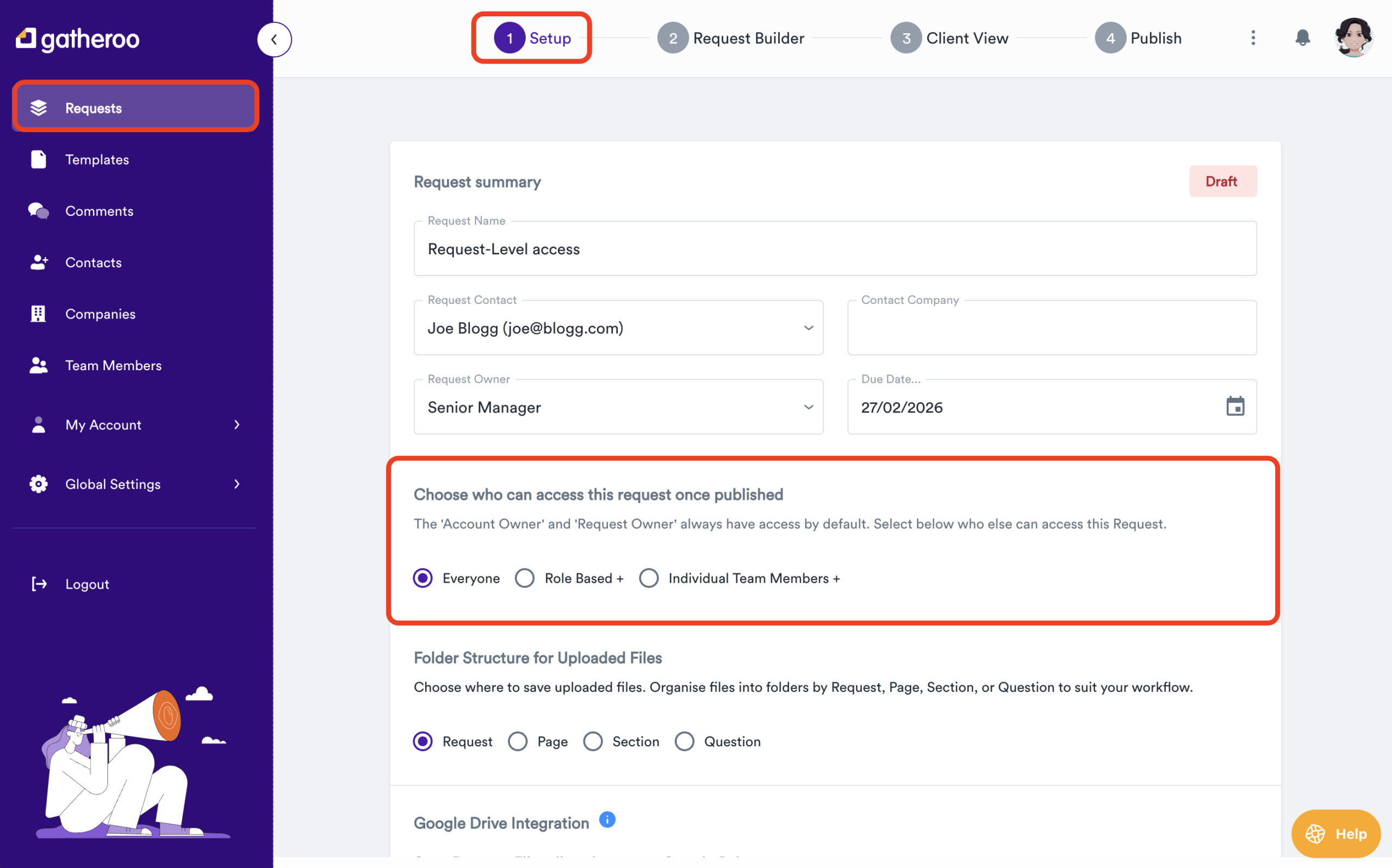
You’ll see three options:
- Everyone
- Role Based
- Individual Team Members
It’s important to note that the ‘Account Owner’ and ‘Request Owner’ always have access to the request by default.
Access level: Everyone
This does what it says on the tin, there are no restrictions on who can see the request and the answers it contains.
Use this when the request is not especially sensitive and can safely be seen by anyone on the team with normal access to requests.
Access level: Role-Based
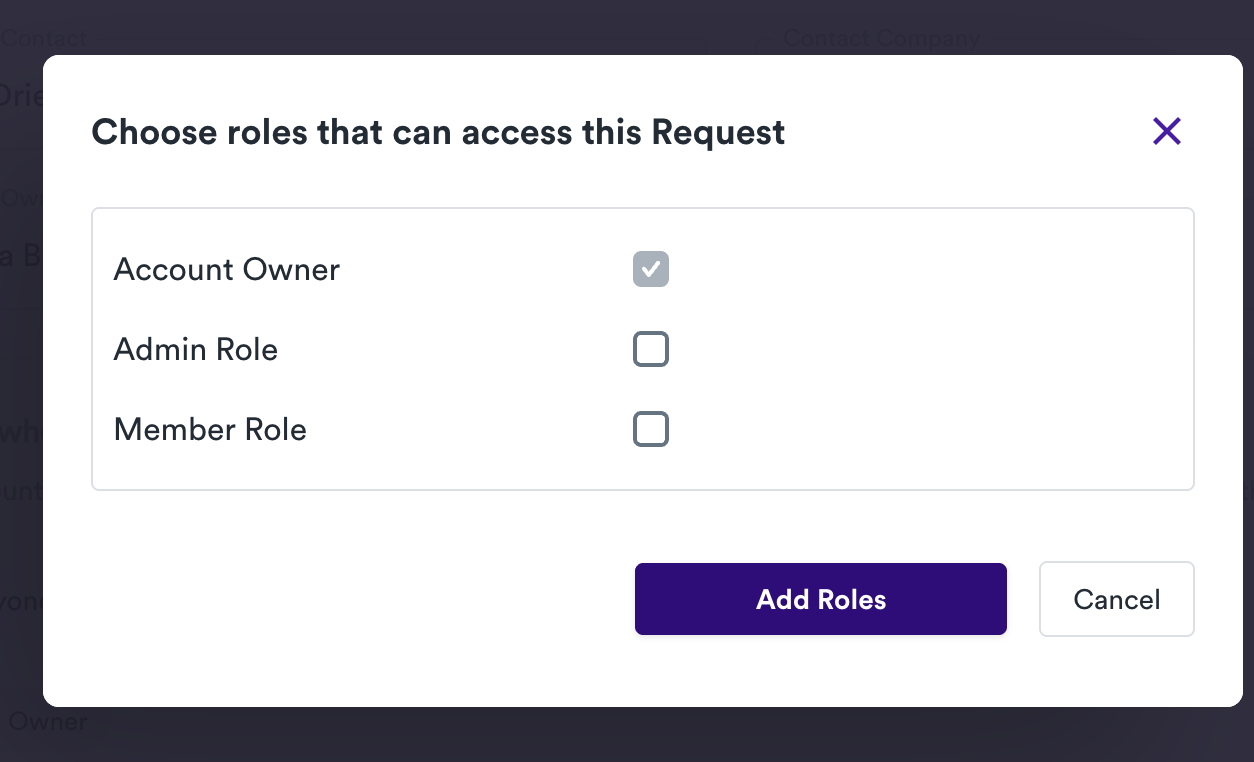
For teams who have clear role-based requirements, setting up team members as either Admin or Members can make ongoing Request-Level Access seamless.
Use this when you want to grant access to requests based on a role (Owner, Admin, Member).
Example:
Set up your senior staff member as “Admins” in Gatheroo, while junior staff are set up as “Members”.
Set your default Request-Level Access for your onboarding document request template to “Member Role“, so your junior staff can access the information they need to set them up on your systems.
Meanwhile, set your default Request-Level Access for your client deep-dive to “Admin Role”, so that once your junior staff have set up and sent the request, only your senior staff can see the information your clients provide.
Tip: This works best when your User Roles and Permissions are set up clearly. Roles become a simple way for you and your ICT team to manage access at scale.
Access level: Individual Team Members
Use this when you want to be very specific about who can see a particular request, such as just the senior client manager and their assistant.
Example: Request A, B and C
Here’s how you might combine these Request-Level Access options in practice:
Request A – General annual checklist
Setting: Everyone
Purpose: Routine information that can safely be viewed by the whole team.
Request B – Sensitive financial review
Setting: Role Based → tick Account Owner and Admin Role only.
Purpose: Keep responses visible to senior staff and owners.
Request C – High‑sensitivity client matter
Setting: Individual Team Members → select the Account Owner and one account manager.
Purpose: Limit access strictly to the people directly responsible for the engagement.
How Roles Support Request‑Level Access
Request‑level access is most powerful when your User Roles and Permissions are configured well.
Roles (Owner, Admin, Member) let you define what each type of user can generally see and do.
Request‑level access lets you tighten or relax visibility per request, without having to change someone’s overall role every time.
For detailed steps on setting up roles, see:
Understanding User Roles and Permissions in Gatheroo