Some Gatheroo requests include a signature field – for example, to confirm you’ve read and agreed to terms or to authorise a document. This guide explains how to sign.
How to sign
1. Find the signature field in your request.
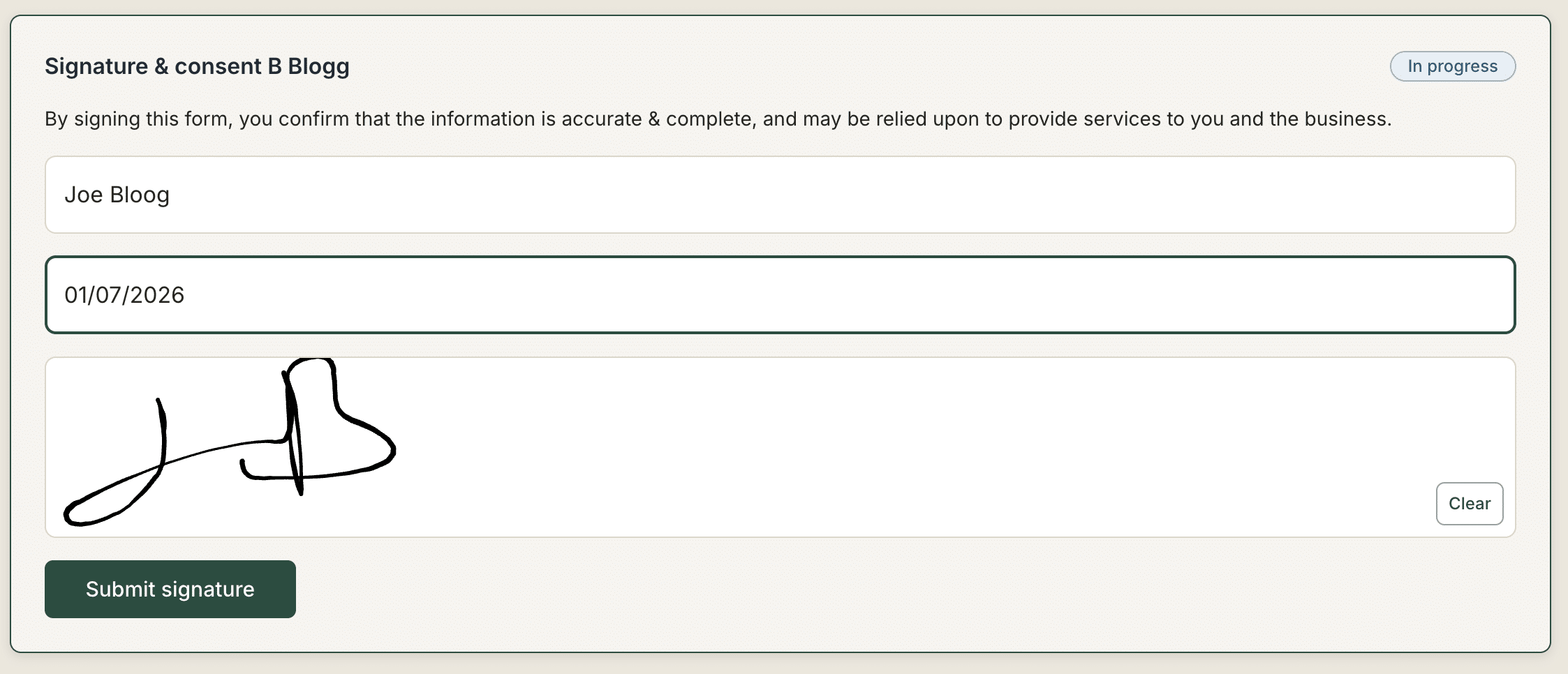
2. Type your name, select today’s date and click or tap inside the signature box.
3. Use your mouse/trackpad or your finger (on a touchscreen) to draw your signature.
4. If you’re not happy with it, click or tap Clear and try again.
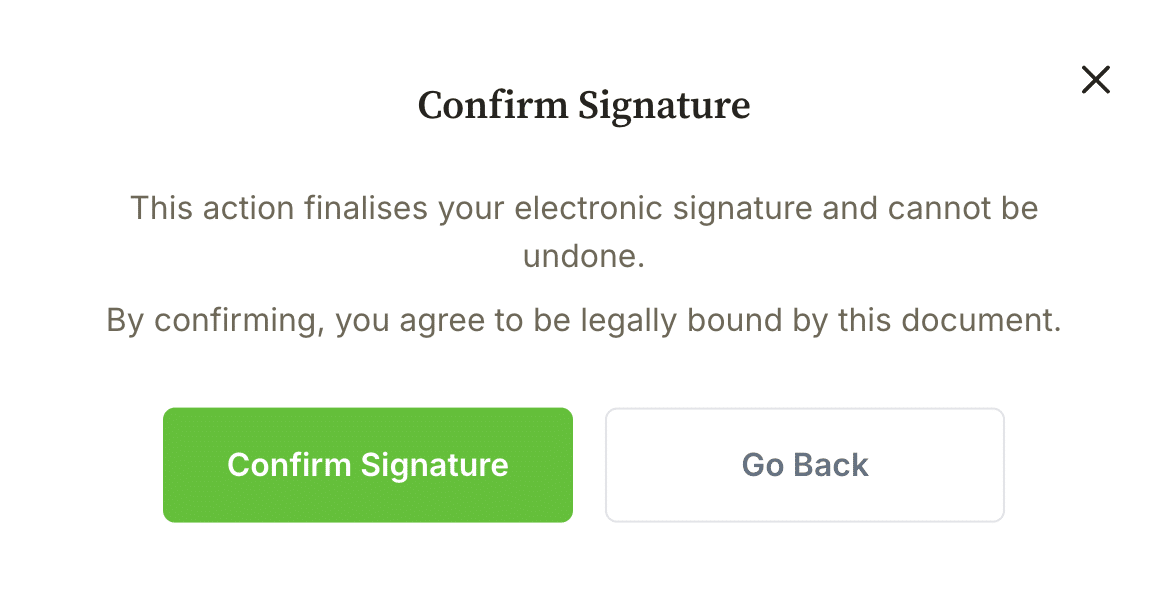
5. Once you’re satisfied, select “Submit signature”. Be aware that signing locks the request.
On a mobile device
Use your finger to draw your signature on the touchscreen. Rotate your phone to landscape mode for a wider signing area if needed.
Does an electronic signature count?
In most jurisdictions, electronic signatures are legally valid for business documents. If you have concerns about the validity of an electronic signature for your specific situation, speak to your service provider or seek legal advice.
More detail on specific steps
- Opening and navigating your request
- Uploading files in a Gatheroo request
- Security and privacy in Gatheroo
Get back to the main guide