This guide walks you through opening your Gatheroo request and finding your way around it.
Opening the request
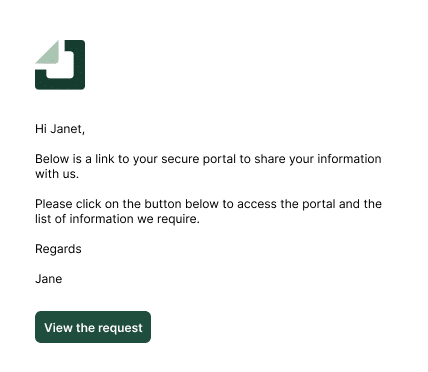
1. Find the email from your service provider and click the Open Request button or link. The email will look similar to the email below, however it may have your service provider’s brand colour and their own logo instead of the Gatheroo logo and Gatheroo Green.
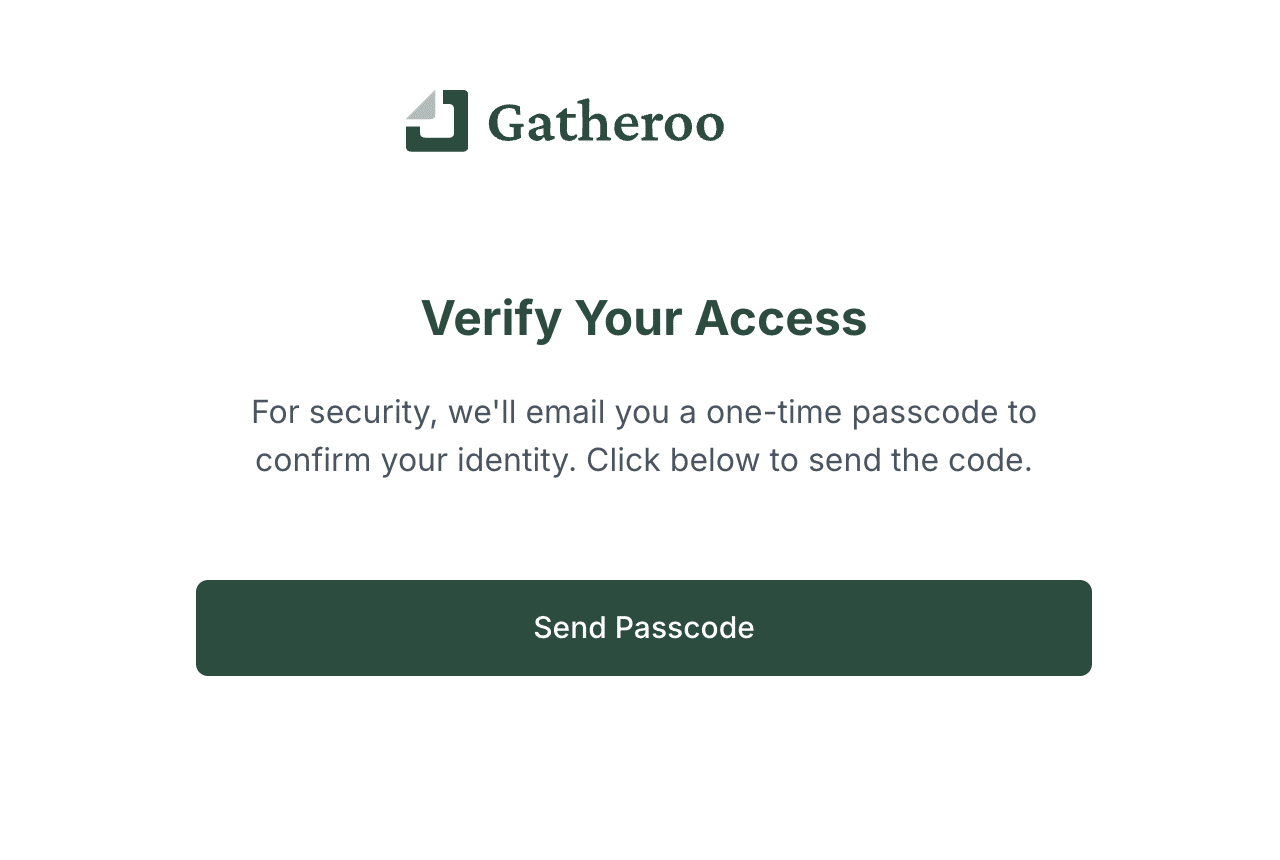
2. If your service provider has enabled Secure Access, you’ll be asked to enter a passcode before the request opens. Request the passcode on the screen and you will receive it in an email or sms depending on how your service provider has set up the request.
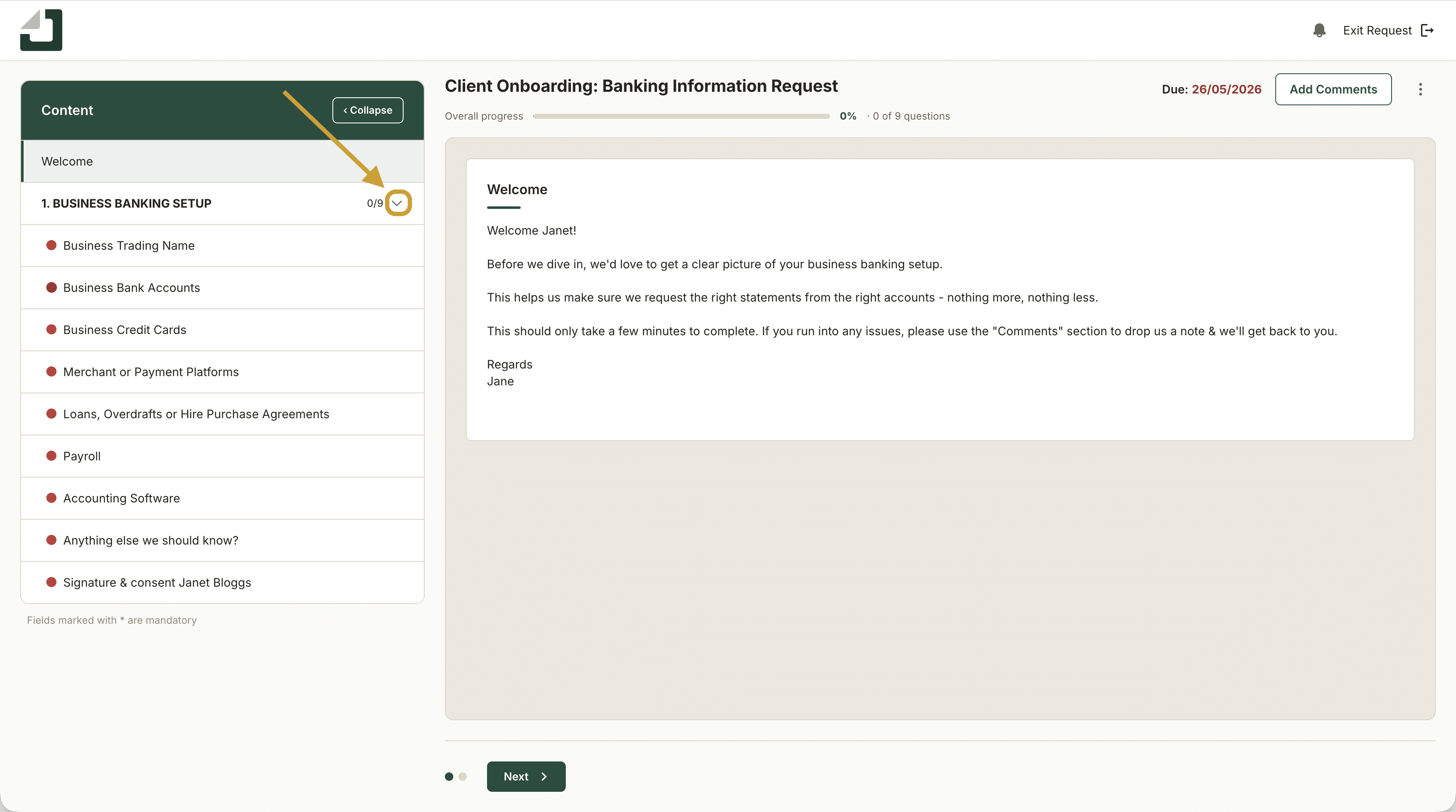
3. The request will open in your browser. No download or account creation is required. You may need to click arrows on the menu to open it up.
Navigating the request
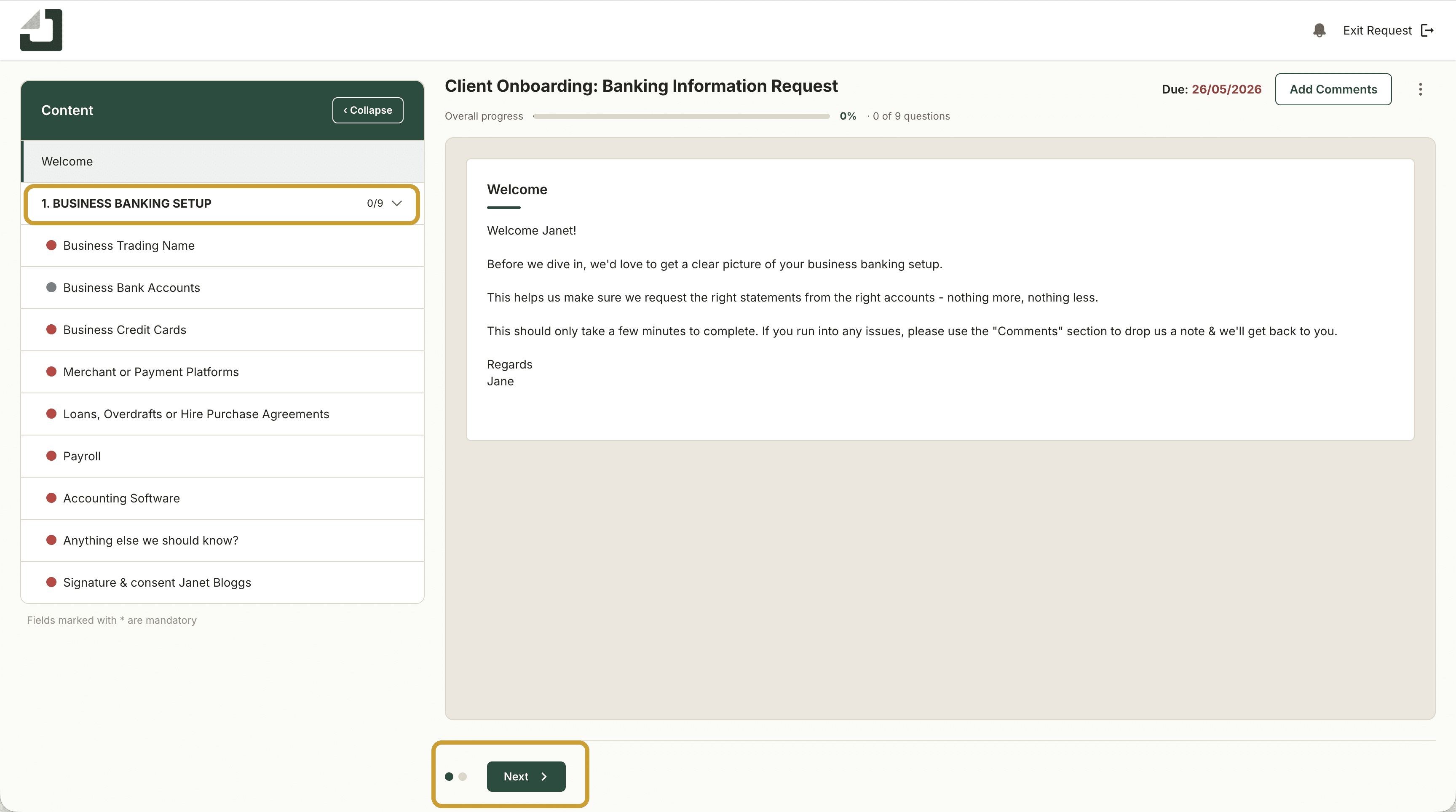
Requests may have one page or several. If there are multiple pages, you’ll see a Next button at the bottom of each page to move forward, and a Back button to return to the previous page.
You can also select a different page, or question, through the left hand menu.
The Welcome message can be accessed by selecting “Welcome” on the left hand menu.
Required fields are marked with an asterisk (*). You won’t be able to move to submit the question or the page, until all required fields are completed.
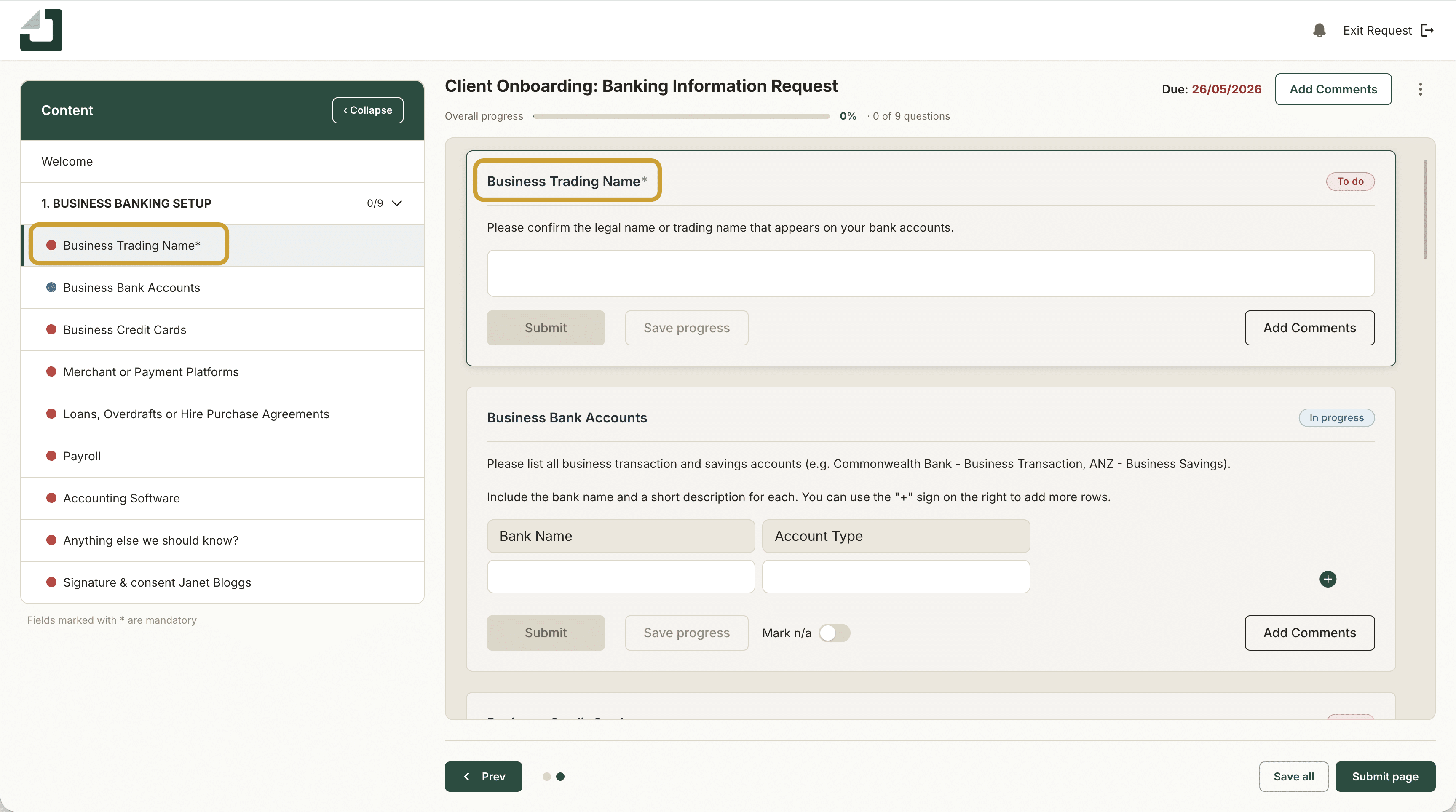
Marking a question as not applicable. If a question doesn’t apply to you, look for the “Mark n/a” option to the right of the submit button — this isn’t available if your service provider has marked the question mandatory.

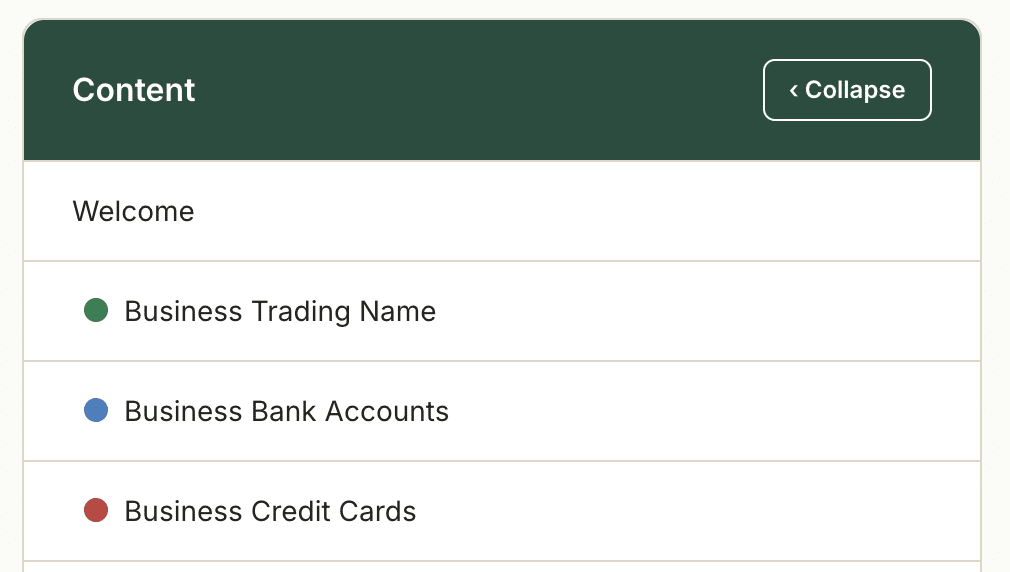
Tracking your progress. The left-hand menu shows a coloured dot next to each question: red means not yet answered, blue means saved but not submitted, and green means submitted.
You will also see a progress bar on the top navigation bar

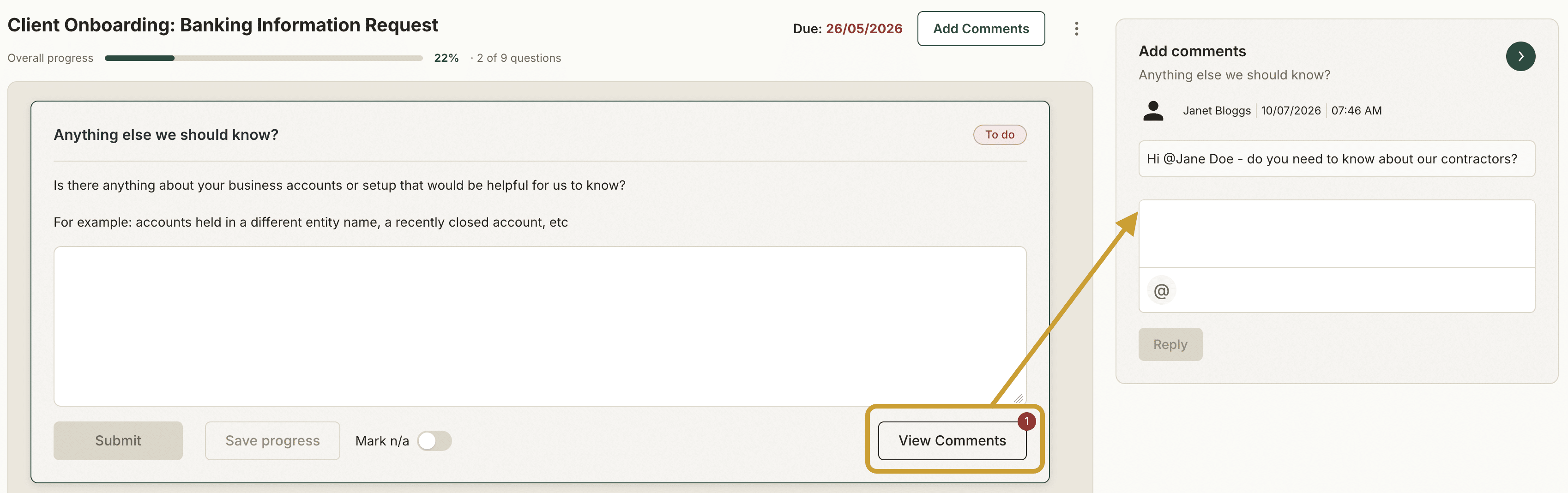
Asking a question. If you’re unsure what a question means, look for instructions underneath it, or use the comment icon to ask your service provider directly. For anything more general, use the “Add Comments” button at the top right of the screen.
Saving your progress
Your answers are saved when you are ready through the various “Save progress” and “Submit” buttons attached to a question, or at the bottom of the page. If you need to stop and come back later, just close the browser, your progress will be there when you return via the same link in your email.
Submitting the request
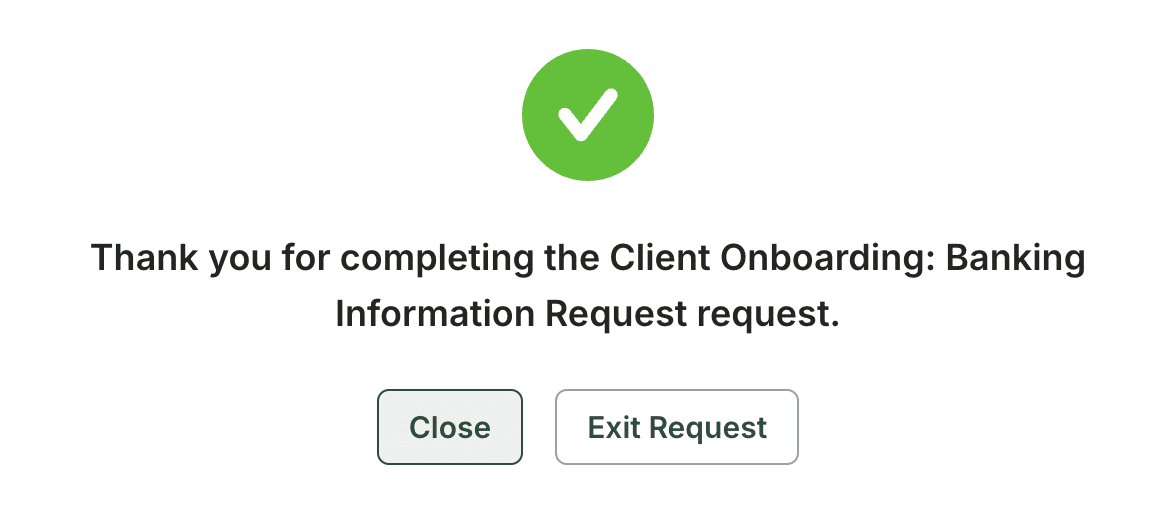
Once you’ve completed all pages, you’ll see a Submit button. Click it to send your completed request to your service provider. You’ll see a confirmation message once it’s been received.
More detail on other steps
Get back to the main guide