The Signature field lets you collect legally-recorded signatures from one or more contacts within a project request.
It’s designed for situations where you need a client, trustee, or other party to formally sign off on a document or declaration.
Setting up the field
When you add a Signature field to a request, you can customise it with the following options:
- Field name: give the field a clear label, such as “Client Signature” or “Trustee Declaration”
- Make this field mandatory: require the signature before the request can be marked complete
- Include a “signing as” choice: display radio button options (e.g. Myself, Trustee) so the signatory can indicate the capacity in which they’re signing. You can add as many choices as needed, and optionally enable an “Other” free-text option
- Display as horizontal vs. vertical list: controls how the signing-as choices are arranged on screen
- Lock fields when signed: prevents changes to the signature after submission (enabled by default)
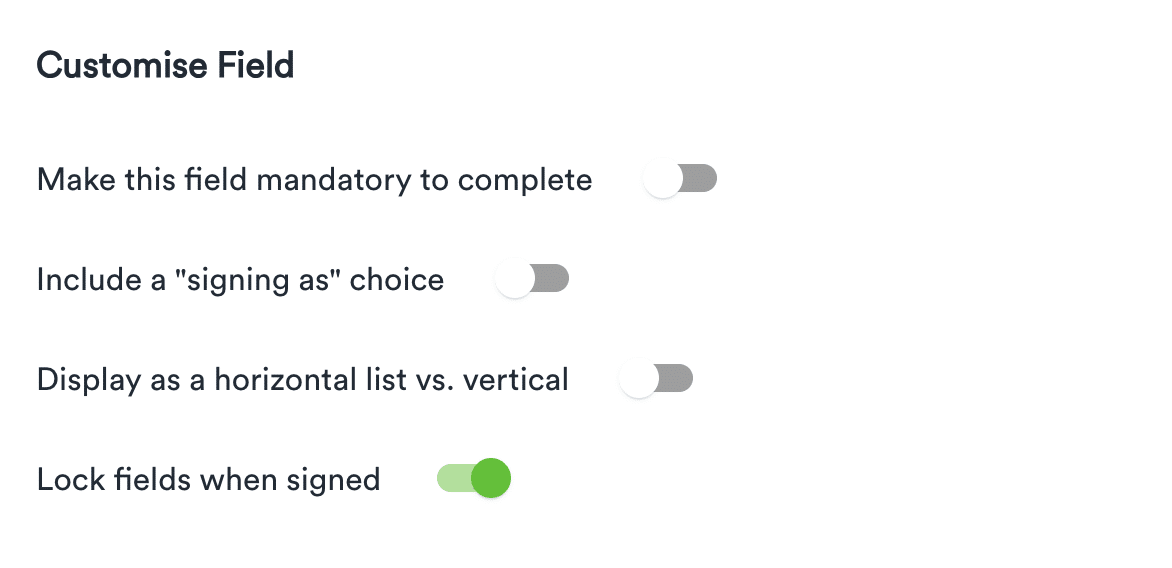
How to it looks on your builder
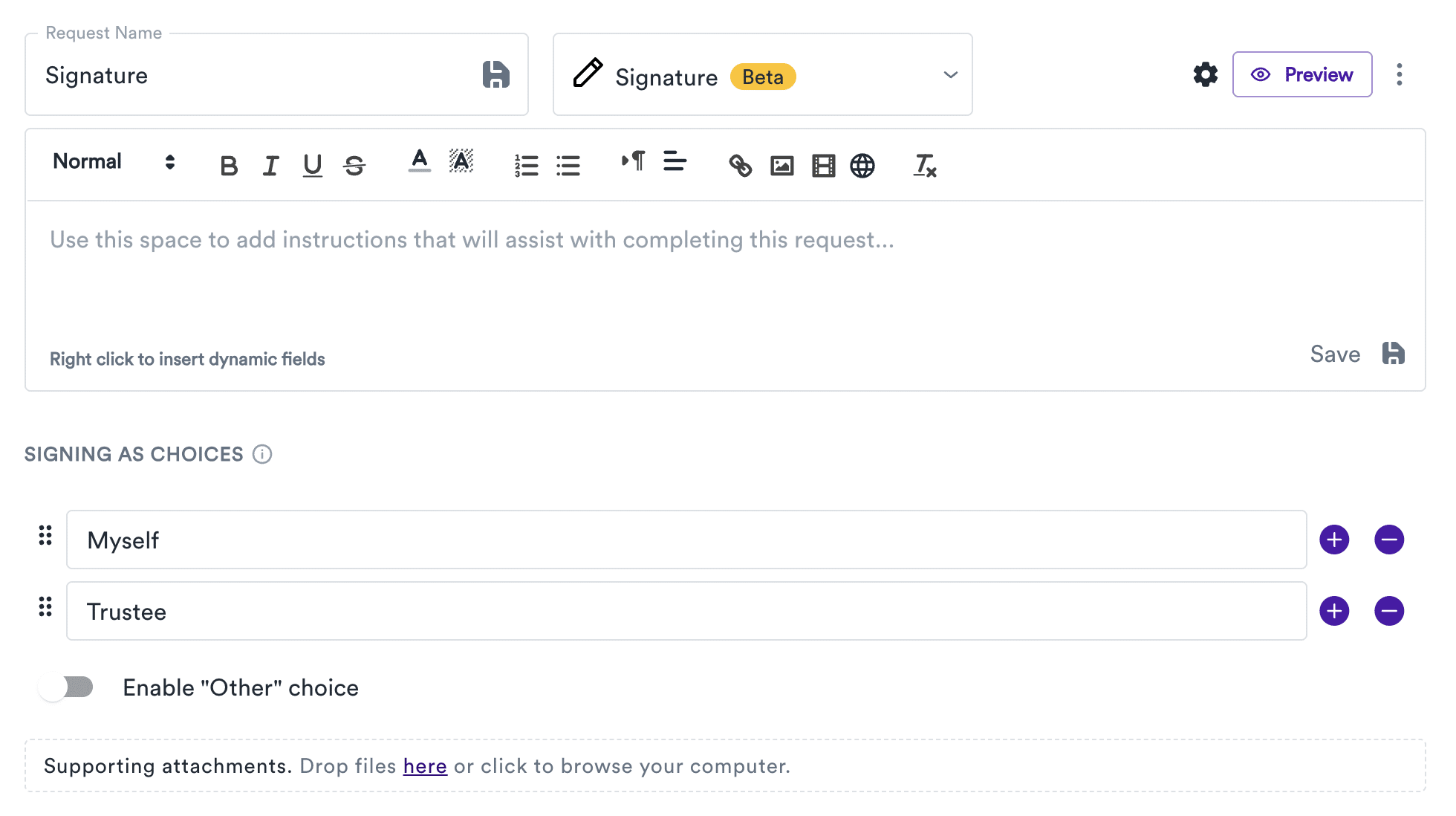
Selecting “include a signing as choice” will display a list that you can amend – whether you are asking someone to sign as a company official, trustee, parent etc. You can add as many choices as you need.
When you look at the request on your “Preview” tab – you will see the field is grey’ed out.
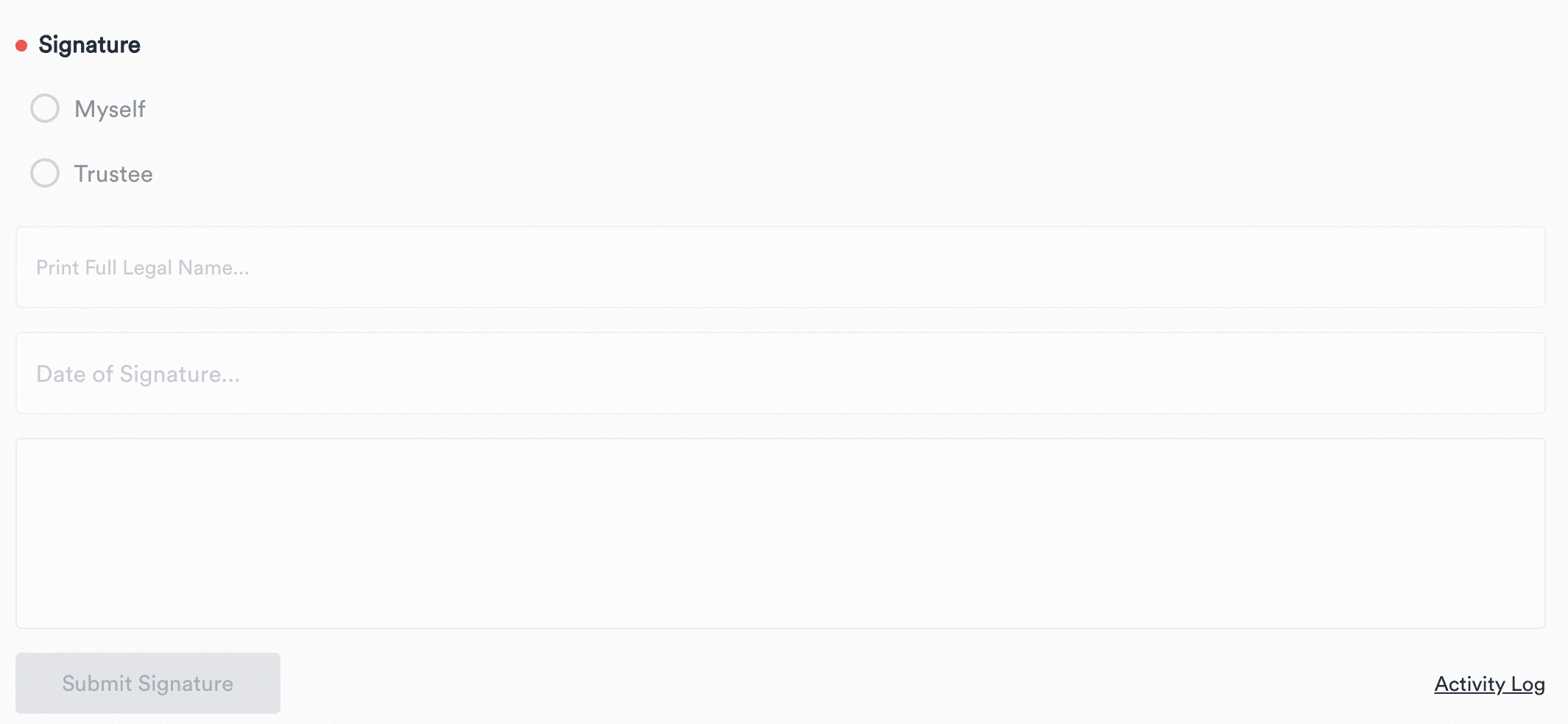
How it works for your contacts
Each contact with access to the project sees their own signature field, labelled with their name.
They’re asked to:
- Select the capacity in which they’re signing (if “signing as” choices are enabled)
- Print their full legal name
- Enter the date of signature
- Draw or enter their signature in the provided field
- Click Submit Signature
Multiple signatories
If your project includes more than one contact, each person receives a unique link and sees a separate signature field assigned to them.
In the Gatheroo “Publish & Send” tab, you can see and amend which contacts are required to sign via the Required to sign toggle on each contact’s link.
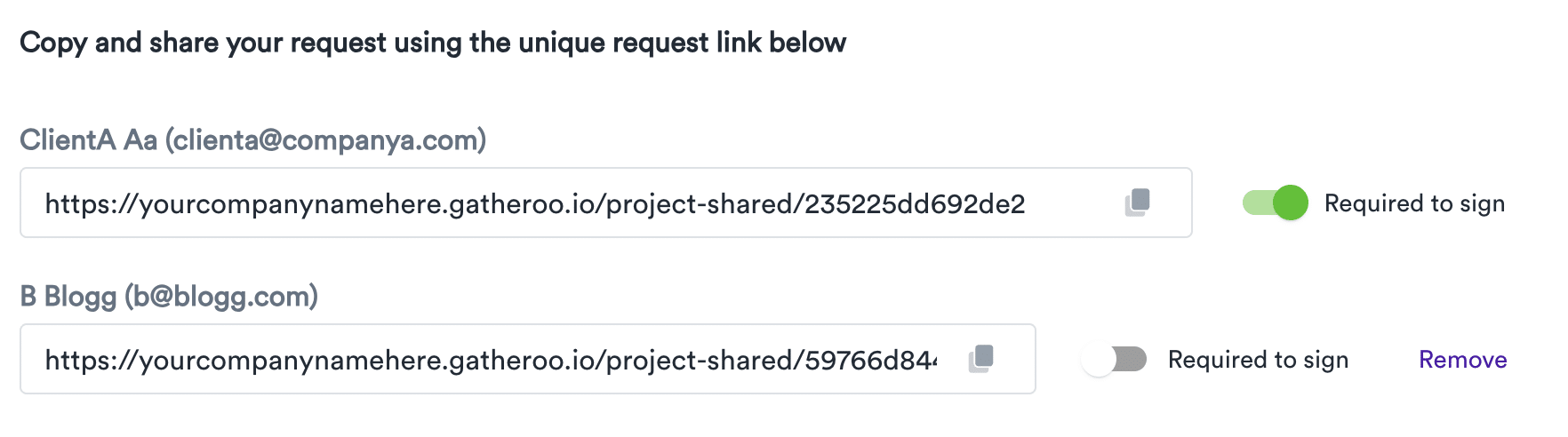
Contacts who are not required to sign can still be shared the project link, they simply won’t have an active signature field assigned to them.
Each contact will see a signature field for each contact required to sign, but they will only be able to sign the field connected to their unique magic link URL.
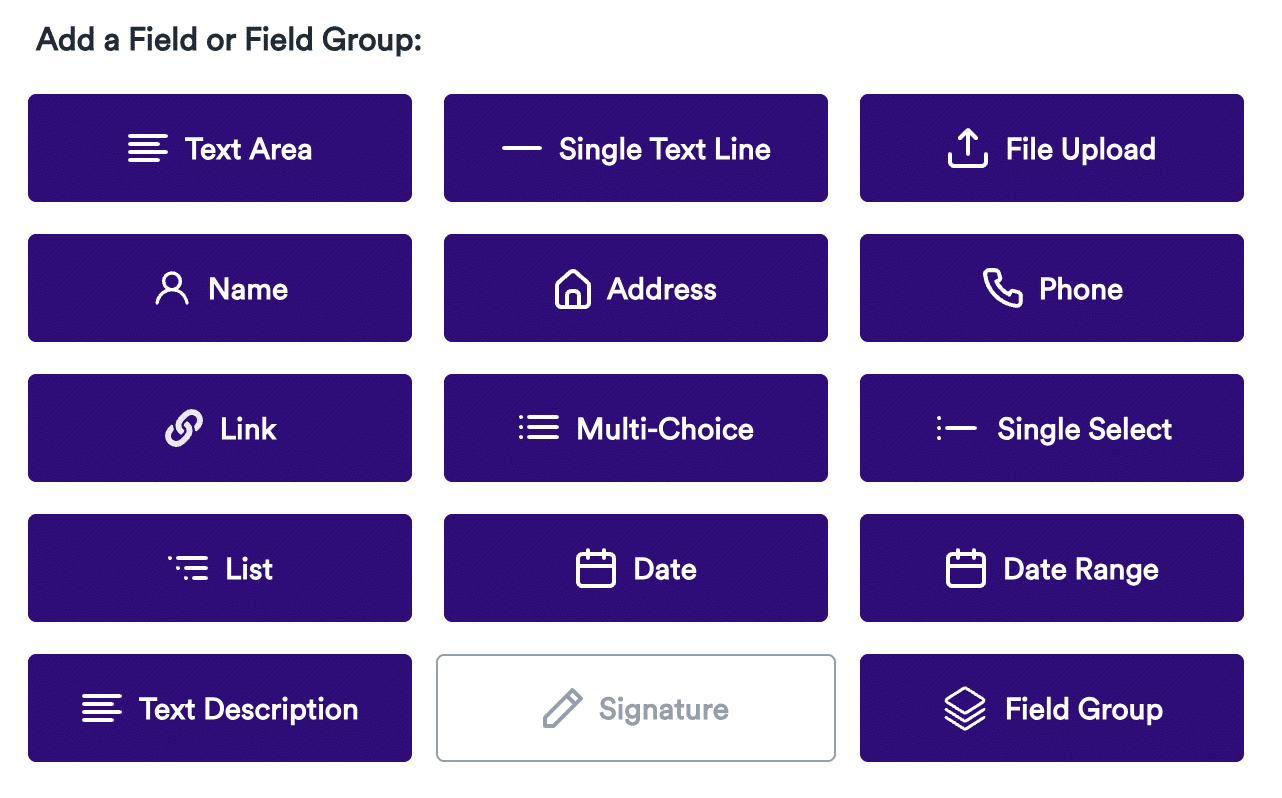
You are only able to add 1 signature field per request.
The signature field will be grey’ed out if you have already used this field in the current request.
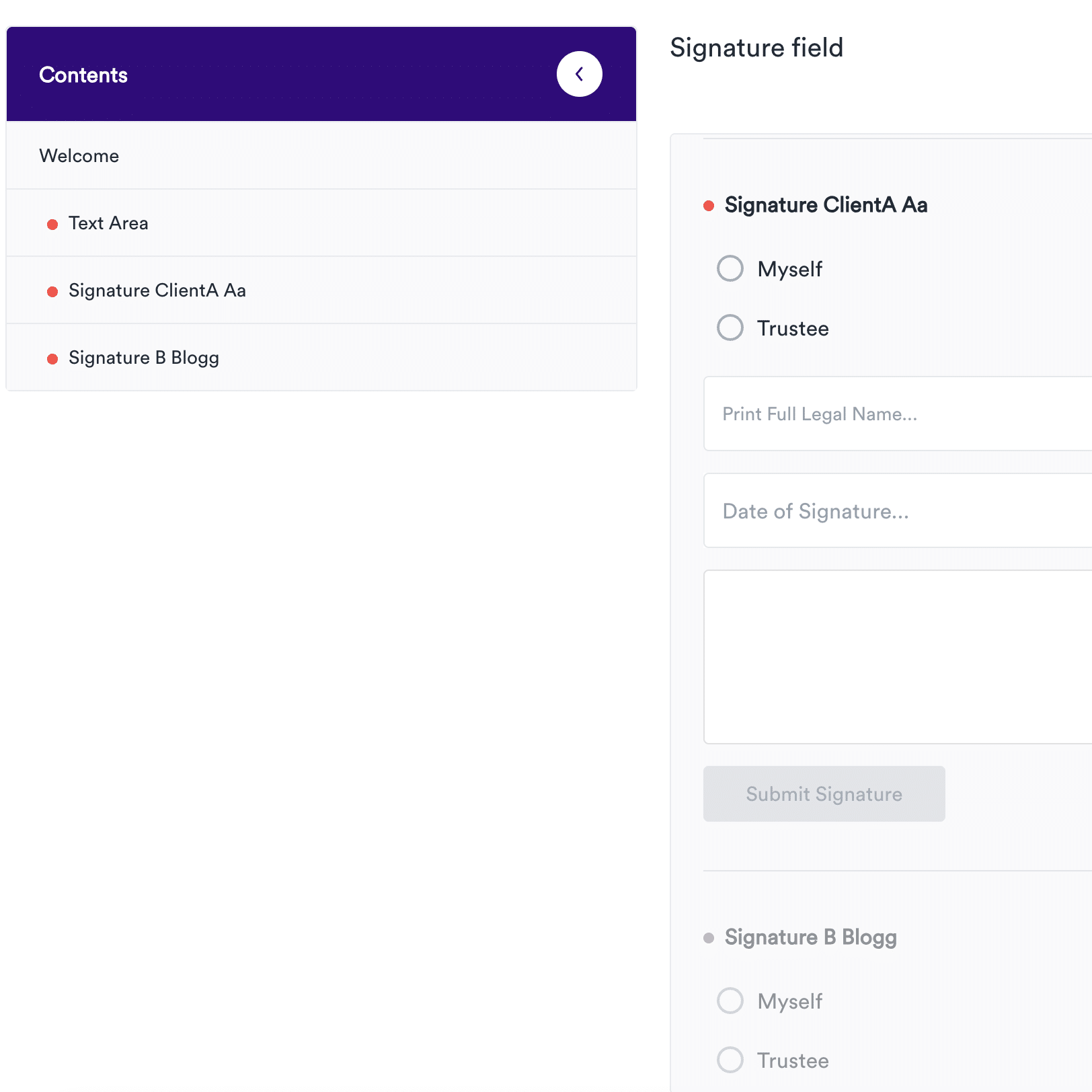
Example with 2 contacts
ClientA will see 2 field as both contact are set to be required to sign, but the second field is locked.
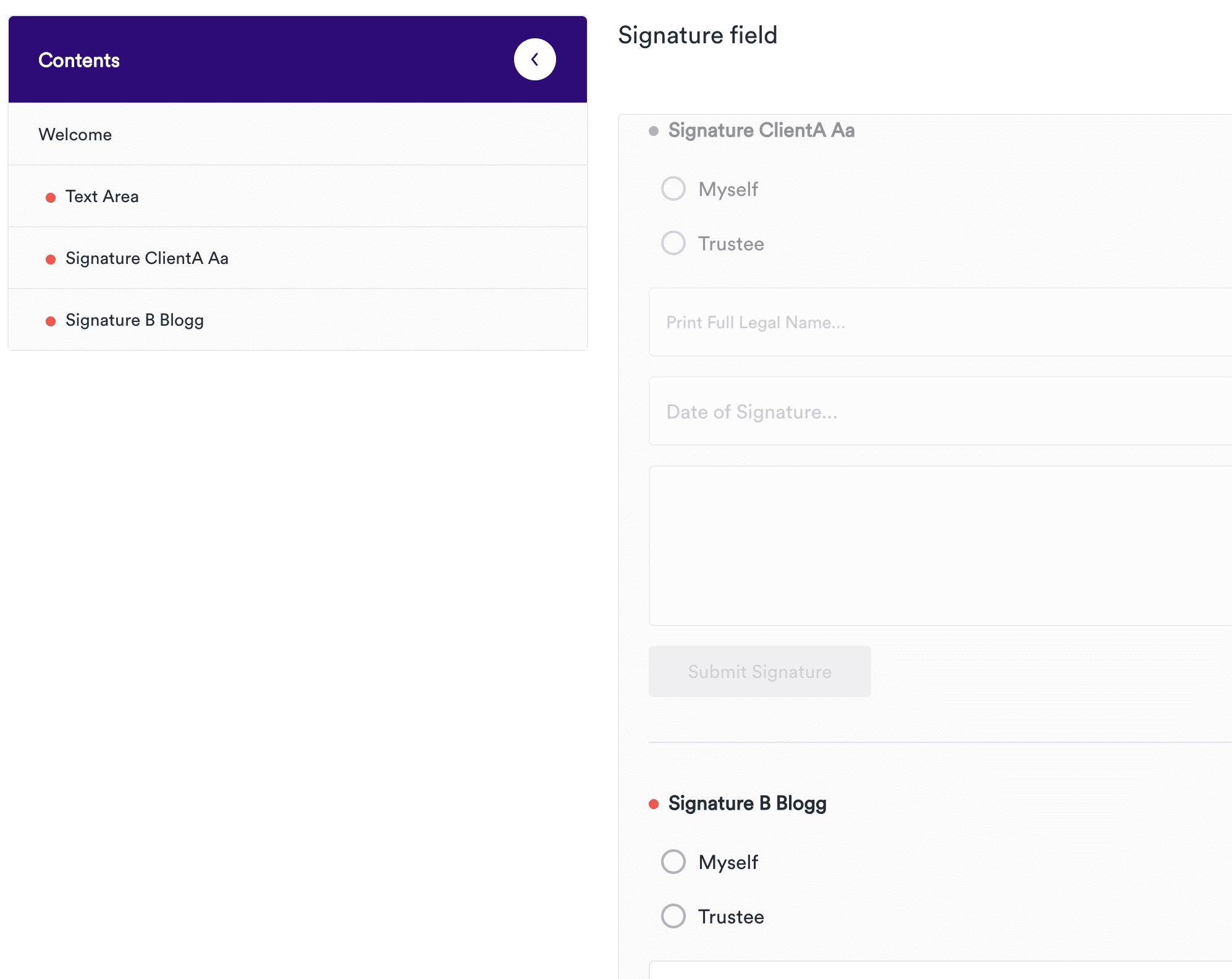
B Blogg will also see 2 fields, and the first is locked as it is allocated to ClientA.
A note on the signing-as choices
The “signing as” options (e.g. Myself, Trustee) are configured by you in the request template. These aren’t legally-binding role assignments – they’re a declaration by the signatory of the capacity in which they’re acting. Make sure your choices reflect the options relevant to your use case before sharing the request.