What this does: Data retention removes client information you no longer need. Once a request is complete, or an intake form is submitted, Gatheroo waits for the period you choose and then either flags it for your team to delete or deletes it automatically. You set the defaults once here, and you can change them on any individual request or form.
Only account Owners and Admins can change data retention settings.
How to turn on data retention
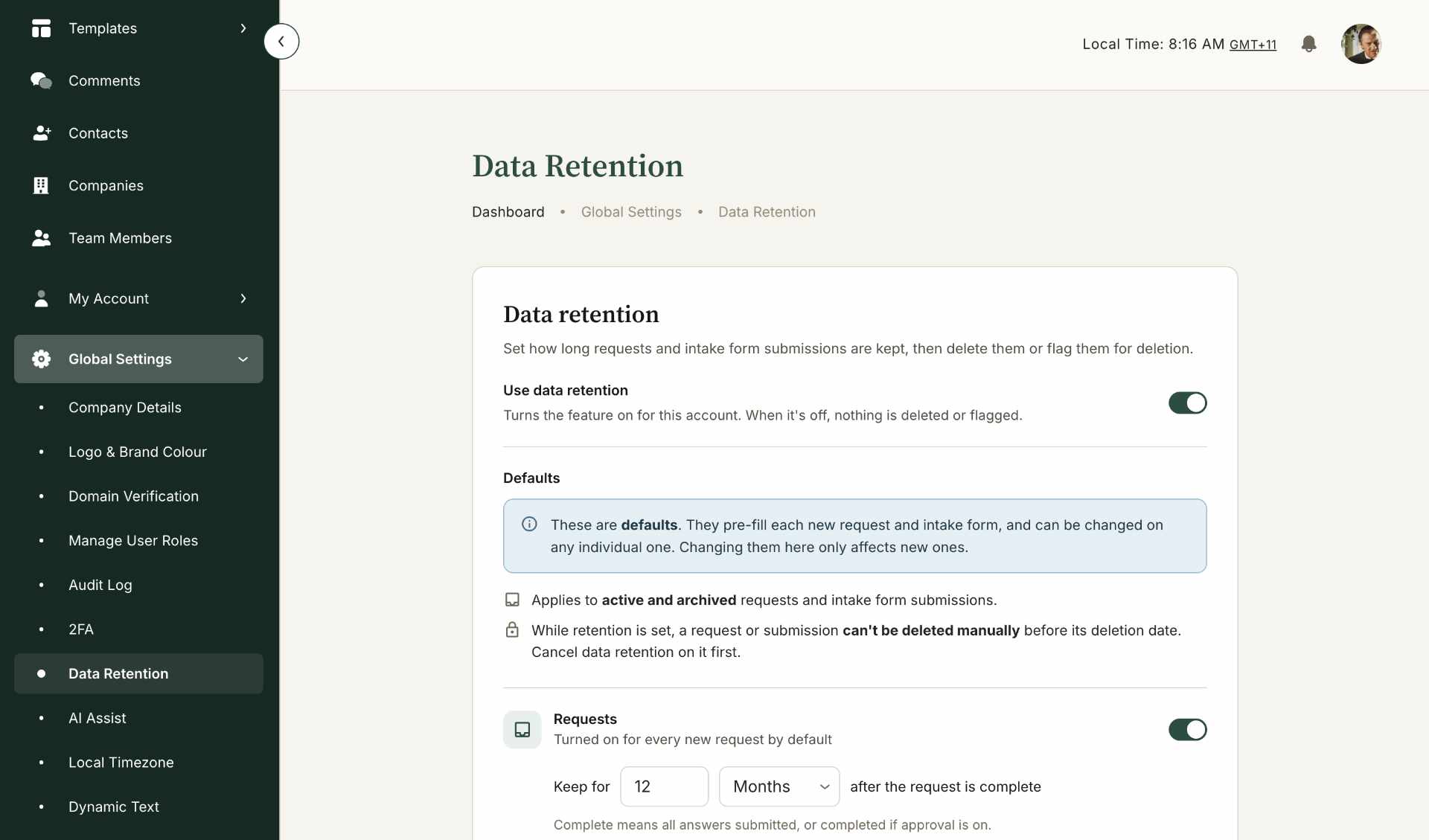
- Go to Global Settings › Data Retention.
- Turn on Use data retention.
- Under Requests, turn on Turned on for every new request by default if you want every new request to start with a retention rule.
- Set Keep for: choose a number and a unit (Days, Months or Years). The default is 12 months.
- Under Then, choose what happens when that period ends:
- Flag for deletion: the request is marked for deletion and shown in your list. Your team reviews it and deletes it themselves. Nothing is deleted automatically.
- Delete automatically: Gatheroo permanently deletes it on the deletion date.
- Repeat steps 3 to 5 under Intake forms.
- Under Reminder email, leave Email the owner the day before the deletion date on so the owner gets a warning.
- Click Save Changes.
When the countdown starts
- Requests: when the request is complete, meaning every answer is submitted. If Review Answers is on, the countdown starts once every answer is approved.
- Intake forms: when each submission is submitted. Every submission gets its own countdown.
What gets deleted
When a request or submission is deleted, Gatheroo permanently removes:
- all answers
- all uploaded files
- all comments and queries
Deletion can’t be undone. A record that it happened stays in your Audit Log.
Things to know
- Defaults only apply to new requests and forms. Changing them doesn’t affect anything already created. Existing requests start with retention off; you can turn it on for each one in its Setup.
- Flag for deletion is the safer choice. Nothing is removed until someone on your team checks it and deletes it.
- Automatic deletion happens at 11:59pm on the deletion date, in your account’s timezone. Check your timezone in Global Settings › Local Timezone.
- Download anything you need first. Encrypted answers and view-only files aren’t included in the download.
- Retention covers active and archived items. Archiving a request doesn’t stop its countdown.
- Locked from manual deletion. While a request or submission has retention set, it can’t be deleted manually before its deletion date. Cancel data retention on it first.
- Turning data retention off for your account pauses every running countdown. They carry on when you turn it back on.
Tip: Do you only need retention for intake forms? Leave the Requests switch off and turn on Intake forms only.