What this does: Most Gatheroo requests already involve confidential information. View-only is for the files where that’s not enough on its own, where a copy sitting untracked on someone’s laptop or inbox is the risk, not just who’s allowed to see it.
View-only is a toggle on a file upload field. Files uploaded to that field can be opened inside Gatheroo, but can’t be downloaded or exported out of it.
Open it in Gatheroo, never take it out of Gatheroo.
It’s commonly used for identity documents, medical certificates, passports and anything else you need to see to do the work but have no reason to keep a copy of.
Turn on View-only
- Open the request and go to step 2, Request Builder.
- Add or select a File Upload field.
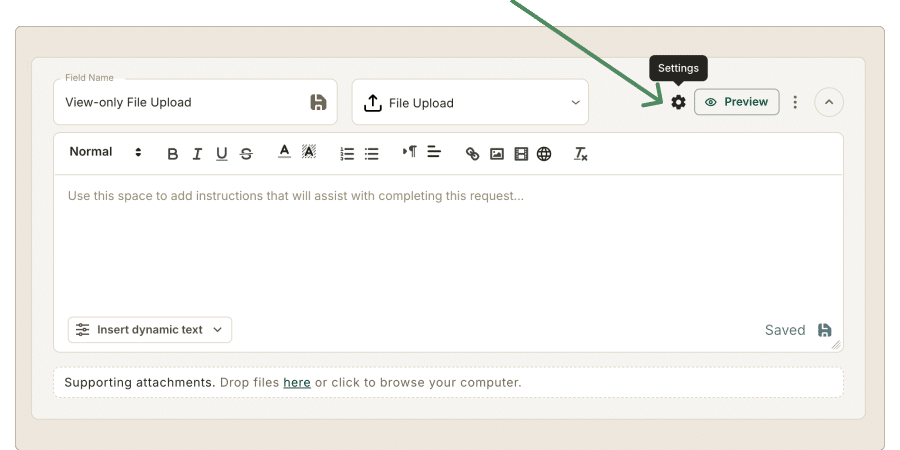
- Open the field’s settings using the gear icon on the right of the field card. The Edit Field panel opens.

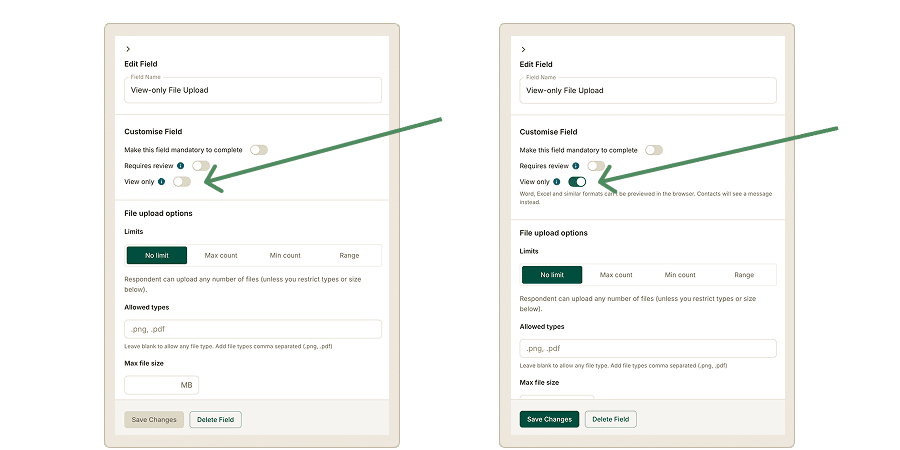
- Under Customise Field, turn on View-only.
- Click Save Changes.
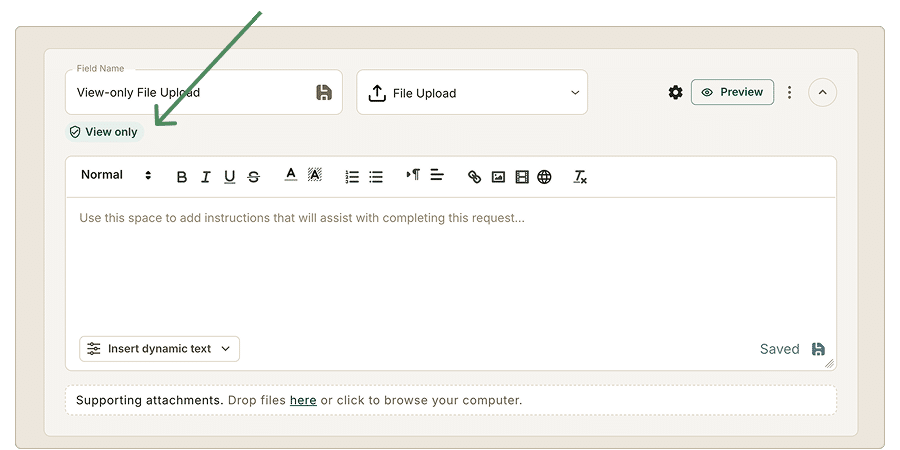
The field now carries a View-only chip in the builder. Click the chip any time to reopen its settings.
A few things worth knowing:
- The same toggle is available on templates, under Template Design → field settings.
- The setting travels with the field when a request is duplicated or saved as a template.
- You can turn it on after a request has been sent, even after files have already arrived, though files already on the field before you turn it on won’t retrospectively pick up the confidential handling.
- You can’t turn it off once a file has been added to the field.
What your client sees
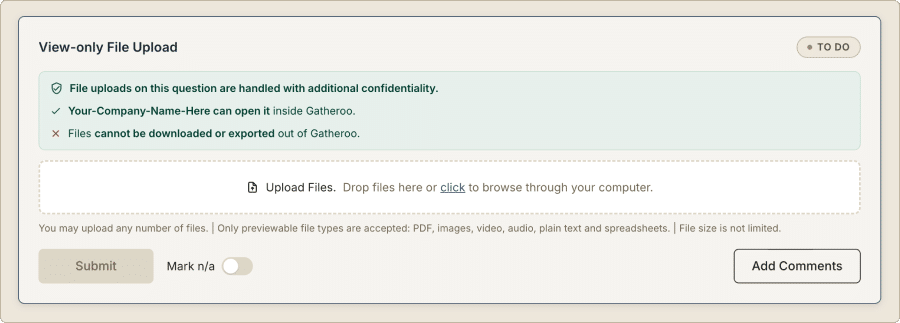
- Before uploading, they see a panel naming your business and explaining that your business can open the file inside Gatheroo, but it can’t be downloaded or exported.
- They upload as normal and can preview or remove their own file before submitting.
- They can’t download their own file either, the download option isn’t there for them.
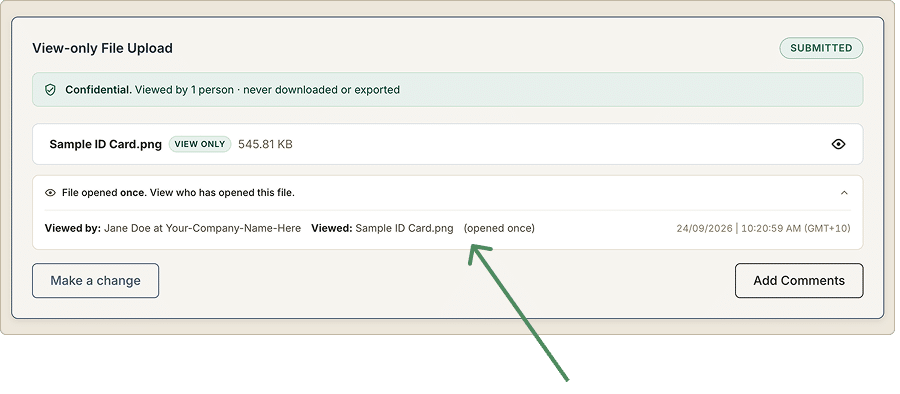
- They can see who’s viewed each file they’ve uploaded to a View-only field.
Which file types you can ask for
Because a confidential file can only be viewed by previewing it in the browser, View-only fields only accept file types the browser can preview, things like PDFs and images.
The exact list is shown to you in the field builder when you set the field up. If someone tries to upload a file type that isn’t supported, they’ll get a message asking for a different format.
Other file upload settings, like file count limits, allowed extensions and max size, keep working as normal alongside View-only.
Opening a confidential file
Open the file by clicking the preview (eye icon) in either step 3, Preview, or step 4, Share & Track, on the Responses tab. There’s no download button on a View-only file.
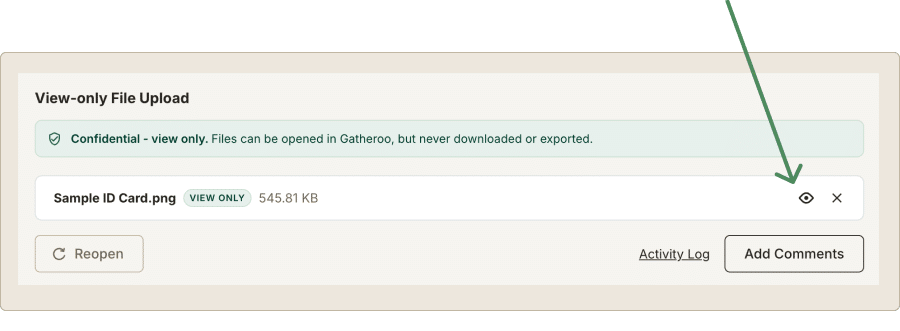
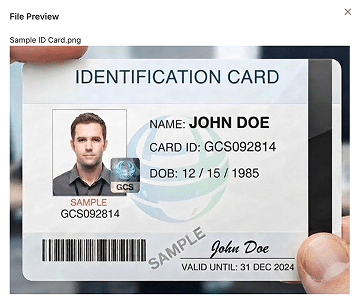
The file will preview in a pop-up window, and can be closed by selecting the “x” on the top right corner.
Seeing who’s opened it
Every time someone opens a confidential file, Gatheroo logs who opened it and when. Opening the same file more than once adds a new entry each time, so the number of entries reflects opens, not people. Your client can see the same record for files they’ve uploaded.
One thing worth flagging to your team: on a View-only field, the manual “Mark as viewed” checkbox isn’t there. The automatic record replaces it, opening the file is the record. If your team is used to that checkbox as a workflow step, they’ll notice it’s gone.
What happens in exports
The file itself doesn’t come out in an export. What you get instead is a note that it was left out, along with a link back to the request so you can open it there.
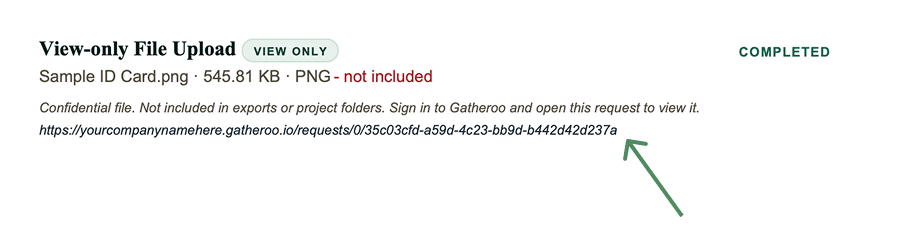
- A PDF export lists the field, filename, size and type, marked as withheld, with a link back to the request.
- A file download leaves the file out of the attachments and instead notes what was left out and where.

Deleting a file
Once your client has submitted, only you can delete a confidential file, and there are two conditions first:
- You need to have opened the file in that browser session. Closing the tab resets this, so you can’t delete something you haven’t looked at.
- If the field is set to “For review,” you’ll need to mark it complete first.
Deleting asks you to confirm and reminds you that confidential files are never included in an export or a project folder, so there’s no other copy to recover it from. You’ll also need to pick a reason before you can delete: no longer needed, uploaded in error, contact asked for it to be deleted, or details captured elsewhere.
Once deleted, the file is gone for good. The request keeps a record that shows it was deleted, who deleted it, when, and why. The submitted answer itself stays submitted, and your client sees that the file was removed, but not your internal reason.
What View-only does and doesn’t protect against
What it stops:
- Downloading or exporting the file through Gatheroo, in PDF, Word, zip, or bulk downloads.
- Being sent out as an email attachment (though Gatheroo doesn’t attach files to outbound email for any field, so this isn’t unique to View-only).
What it doesn’t stop:
- Someone taking a screenshot or photo of the screen.
- Recalling copies that were already downloaded before you turned View-only on.
View-only stops a file being taken out of Gatheroo. It doesn’t stop it being seen, anyone with access to the request can open it. What it gives you, is a full record of who opened it and when.
This is a different feature to field-level encryption. Encryption protects a typed answer behind a passcode. View-only controls whether an uploaded file can leave Gatheroo. See the field-level encryption guide if that’s the problem you’re actually trying to solve.
FAQ
Can my client download their own file?
No. They can preview it, but the download option isn’t there for them either.
Why was my client’s file rejected?
View-only fields only accept file types the browser can preview. Ask for a supported file instead.
Can I turn it on after files have already come in?
Yes, though it only applies going forward. It can’t recall copies already downloaded before you switched it on.
Does it stop screenshots?
No. It stops the file being downloaded or exported out of Gatheroo. You get a record of who opened it instead.
Where do I see who’s opened it?
On the file itself, and in the request’s activity log. Your client sees the same record on their side.
Where did “Mark as viewed” go?
It’s replaced by the automatic record, opening the file is the record. The “Mark as viewed” icon is available on File Upload fields that do not have the View-only option selected.
Can I still delete the file?
Yes. Open it first, then choose a reason. The file is removed, but the log entry stays.
Is this the same as an encrypted field?
No, it’s a different feature with its own guide.