What this does: Conditional logic makes your requests smarter by showing or hiding fields, sections, or pages based on a client’s answer. For example: if a client selects “Yes” to owning a business, show the company details section: if they select “No”, hide it. This keeps requests shorter and more relevant for each individual client.
Conditional logic is triggered by Single Select fields only. The logic can show or hide individual fields based on one or various answers.
How to set up conditional logic
- Open your request in the Request Builder.
- Add a Single Select field with the options you want to use as the trigger (e.g. “Yes” and “No”).
- Add the field you want to show or hide based on that answer.
- Click on the field settings cog.
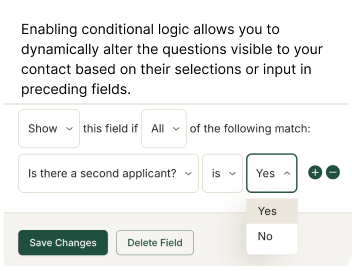
- In the settings panel, find Conditional Logic and click +.
- Choose whether to Show or Hide this Field
- Then choose the condition (ANY or ALL)
- Select the triggering question (Single Select field) and the answer
- Save your request and use the Preview tab to test it.
Tips for effective conditional logic
- By default, elements are visible. If you want something hidden until a condition is met, set the rule to Show (not Hide).
- You can add multiple rules to the same element. Toggling between the “All” and “Any” rules enables more granular conditional settings.
- Always test your logic in the Preview tab before publishing.
- Conditional logic currently works with a single select field and conditional fields within the same section.